Creating a project
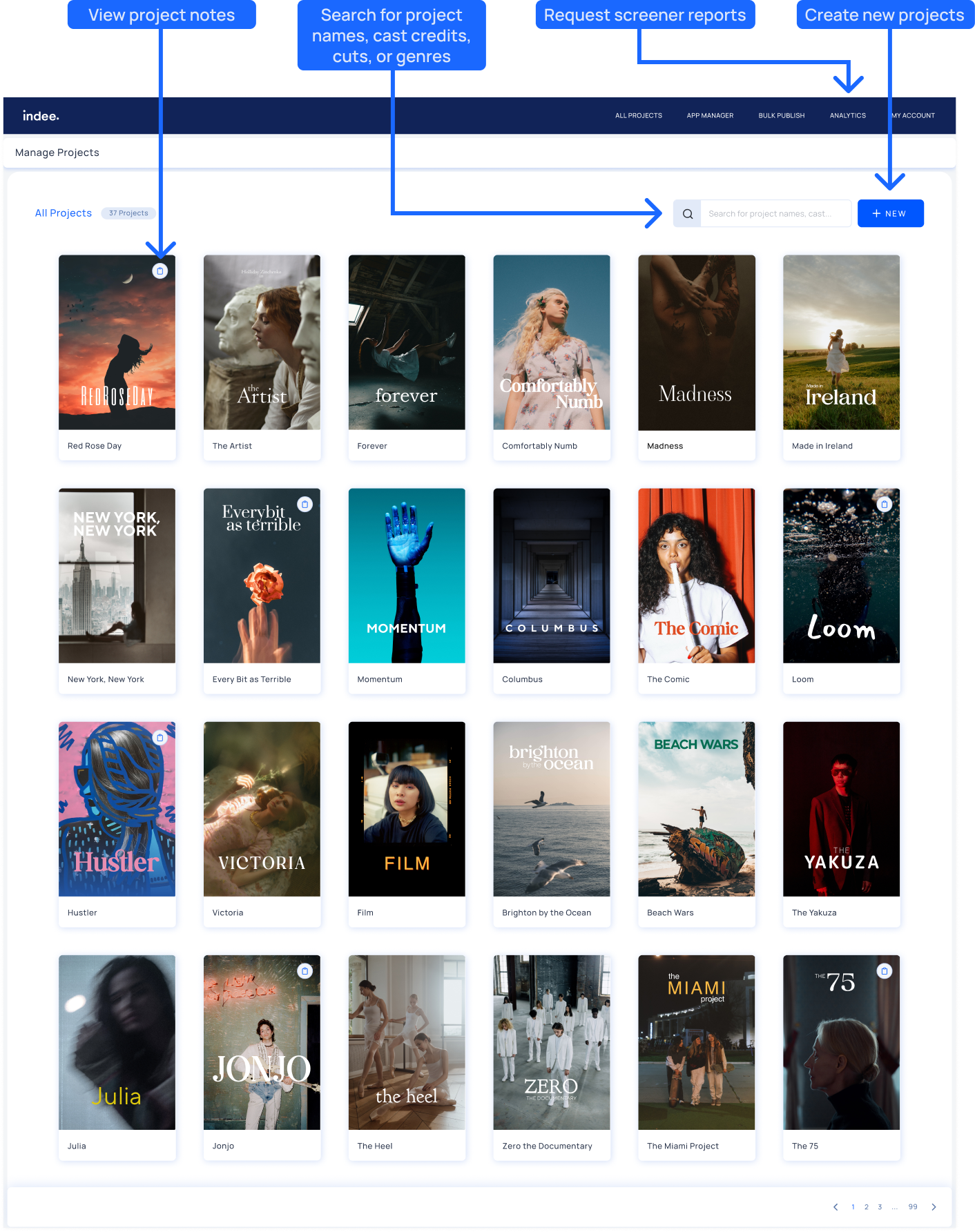
To create a project, click on the “+New” button on the project listing dashboard.
This process has now been split into four sections: Project Details, Assets, Credits, and Extras.
Note: Before moving to the next section, please ensure that all required fields have been completed.
Project details
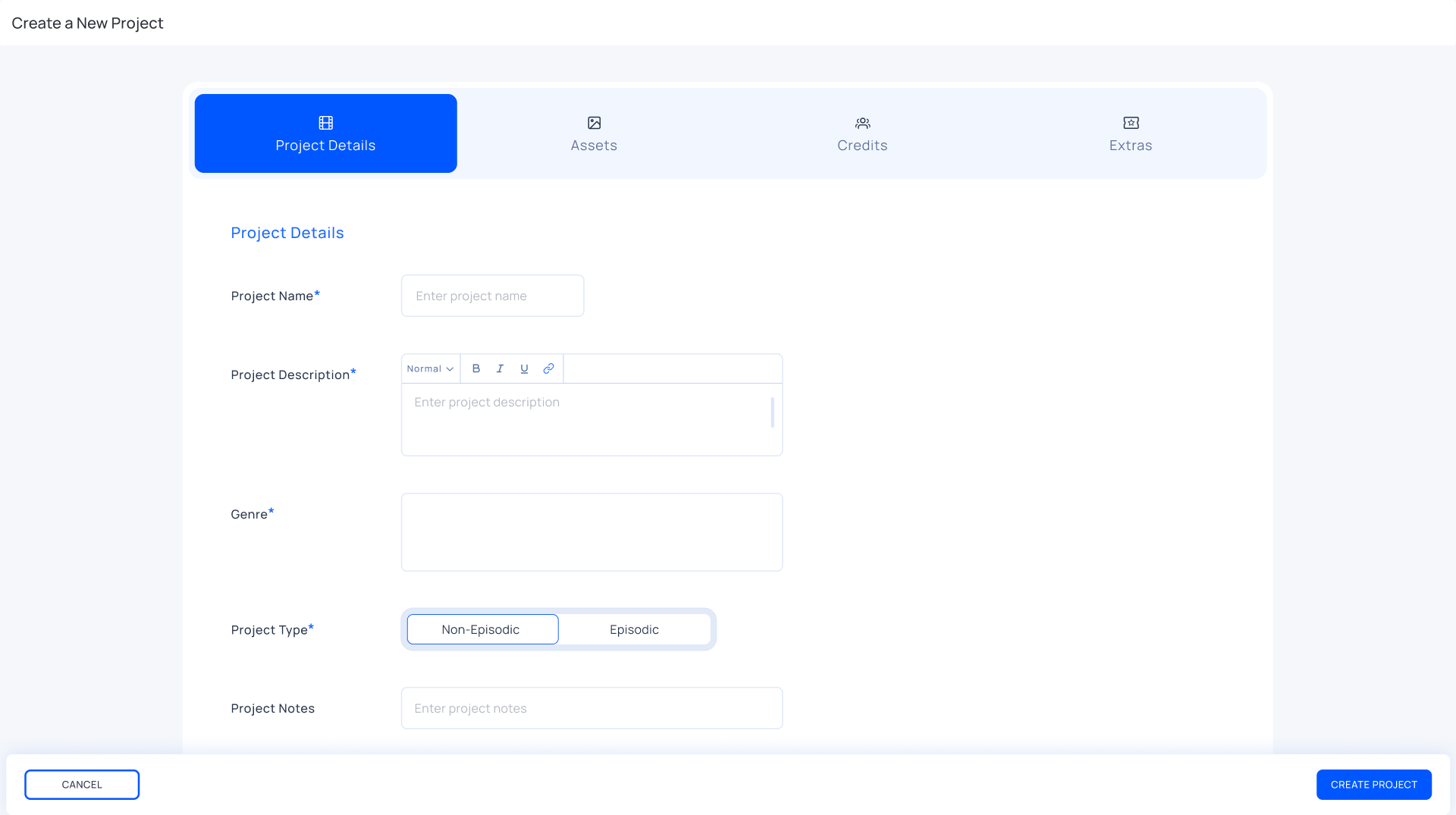
Enter the name of your title in the Project Name text field
Enter a brief description of your title in the Project Description text field
Select the genre of your title - Click the genre field and select a genre from the drop-down menu, or start typing to search for one.
Select Non-episodic if your title is a film or Episodic if it is a series
Enter any other information you think is important in the Project Notes text field (optional)
Click Create Project to continue to the Assets page or Cancel to go to the projects dashboard and lose all unsaved changes
Note: By default, the project type is selected as a Non-episodic project.
Select Episodic if your project contains multiple episode. In episodic projects, videos are organised by Season and Episode numbers, making it easier to manage and distribute multi-part content.
Assets
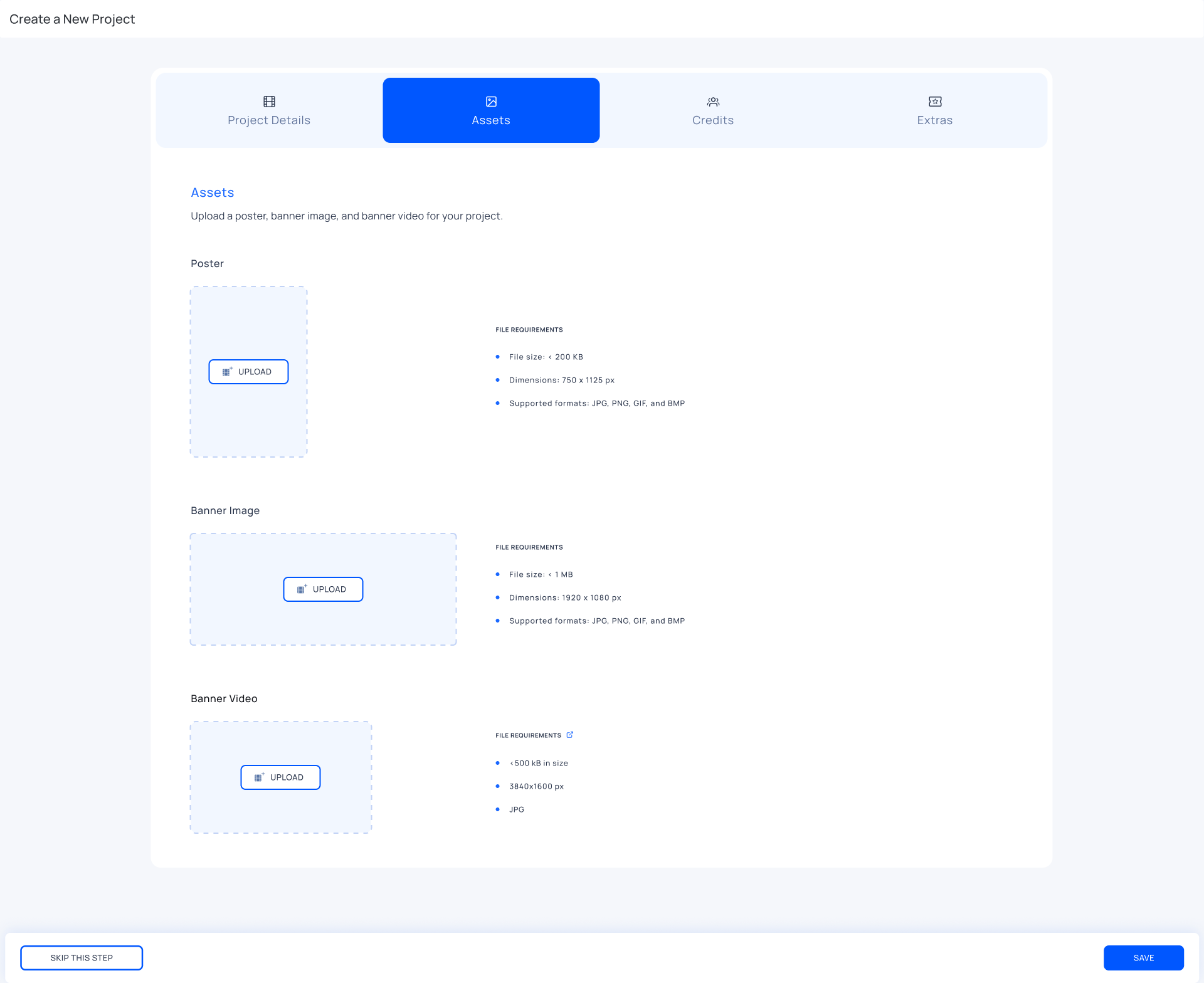
You will be required to upload image and/or video files on this page. These are not compulsory, but they will enhance the viewing experience for your audience if and/or when you decide to send screeners securely.
Upload the poster of your title as an image file, as per our file requirements
The ideal poster specifications on Indee is:
File size: < 200 KB
Dimensions: 750 x 1125 px
Supported formats: JPG, PNG, GIF, and BMPUpload a banner image of your title as an image file, as per our file requirements
The ideal banner specifications on Indee is:
File size: < 1 MB
Dimensions: 3840 x 1600 px
Supported formats: JPG, PNG, GIF, and BMPUpload a short banner video of your title as a video file, as per our file requirements. Banner videos are teaser videos for screeners (Available on FYC only)
The ideal banner video specifications on Indee is :
File size: < 350 MB
Dimensions: > 720p
Duration: < 180s
Codecs: H264 video + AAC stereo audioClick Save to continue to the Credits page or Skip This Step to go to the projects dashboard and lose all unsaved changes
Note: If you upload a banner video, you'll also need to upload a banner image to go with it. Also, if you skip adding a poster and banner, your project will use Indee's default poster and banner images.
Credits
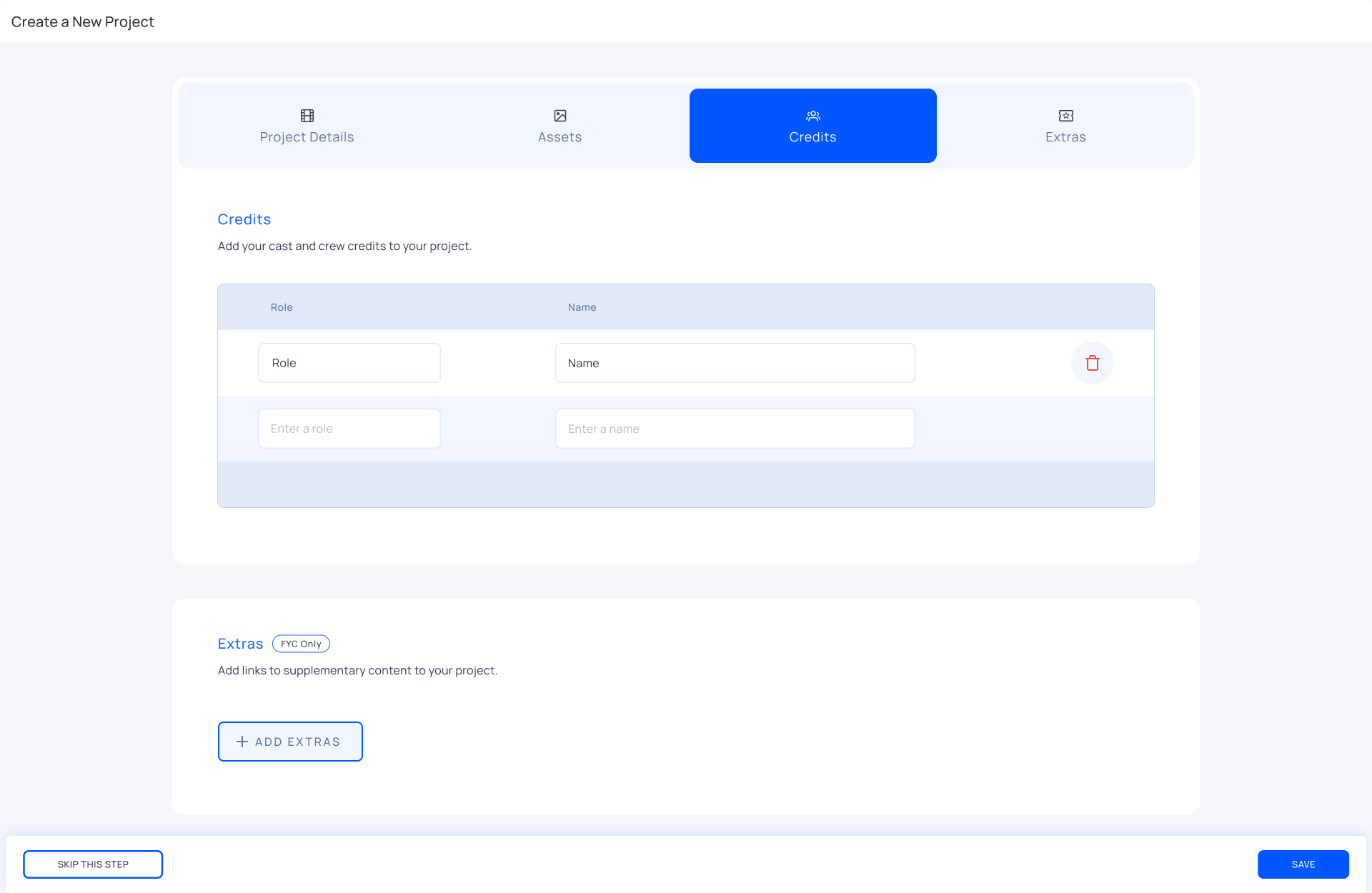
Add Credits details (previously called "Cast & Crew"):
Enter the role of a cast or crew member in the Enter a role text field
Enter the name of the cast or crew member in the Enter a name text field beside their role
Click Save to continue to the Extras page or Skip This Step to go to the projects dashboard and lose all unsaved changes
Note: If multiple people share a role (e.g., two producers), users can either enter multiple names in a single row, separated by commas, or add multiple rows.
Extras (Available on FYC only)
Extras allow you to provide viewers with additional promotional and supporting content related to your project. This can include materials such as panel discussions, Q&As, press events, podcasts, behind-the-scenes content or promotional videos.
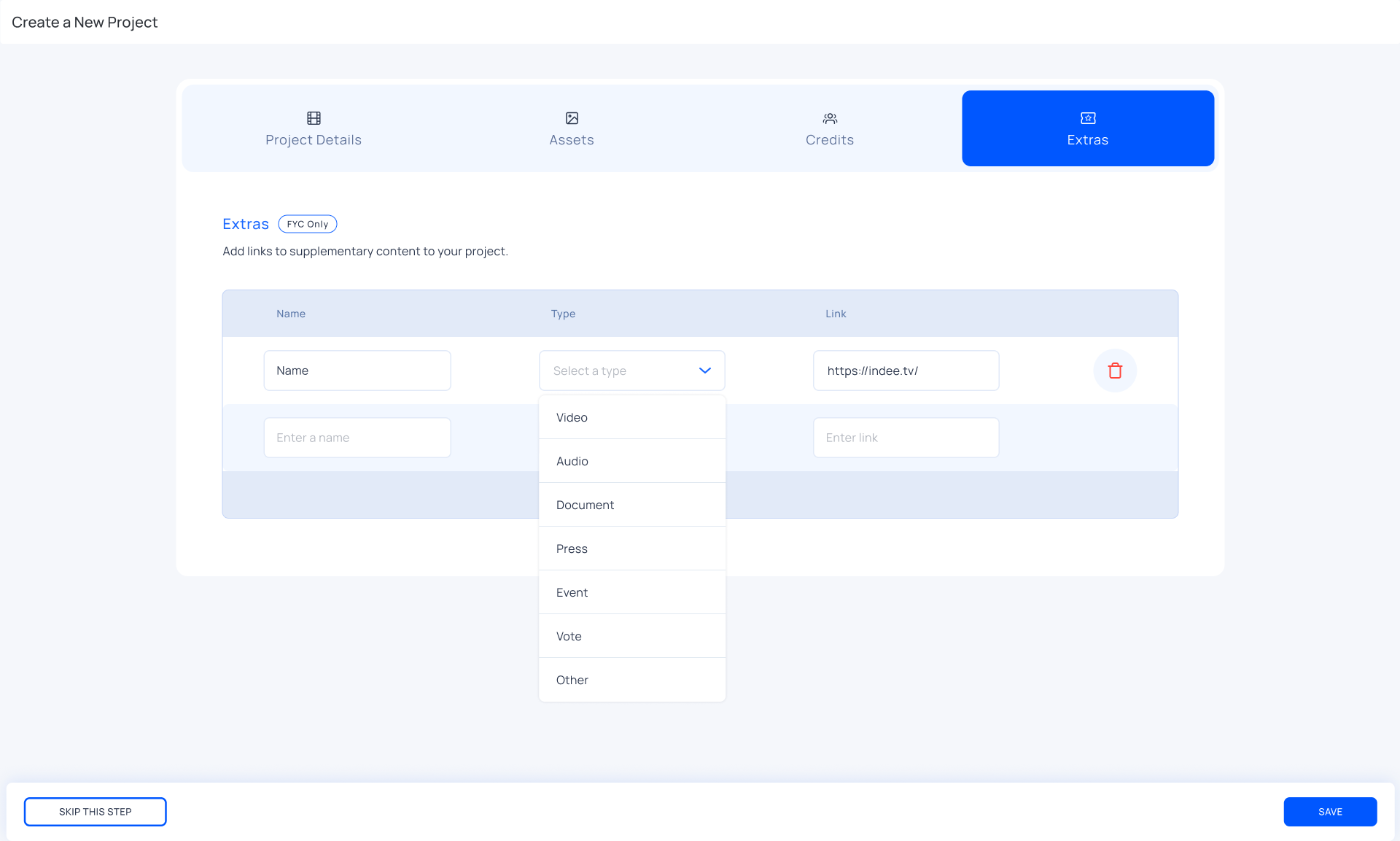
Enter the name of your supplementary content in the Enter a name text field
Select what type of supplementary content you wish to share
Enter a valid link to the supplementary content you wish to share
Click Save to create your project or Skip This Step to go to the projects dashboard and lose all unsaved changes
Extra types include:
Audio
Document
Event
Press
Video
Vote
Other
Please reach out to support@indee.tv once you’ve added extras to your project.
Edit a Project
On the projects page, click the edit button to start editing your project.
Delete a Project
Click the edit button
Click the Delete Project button to delete the project permanently