Bonus Videos
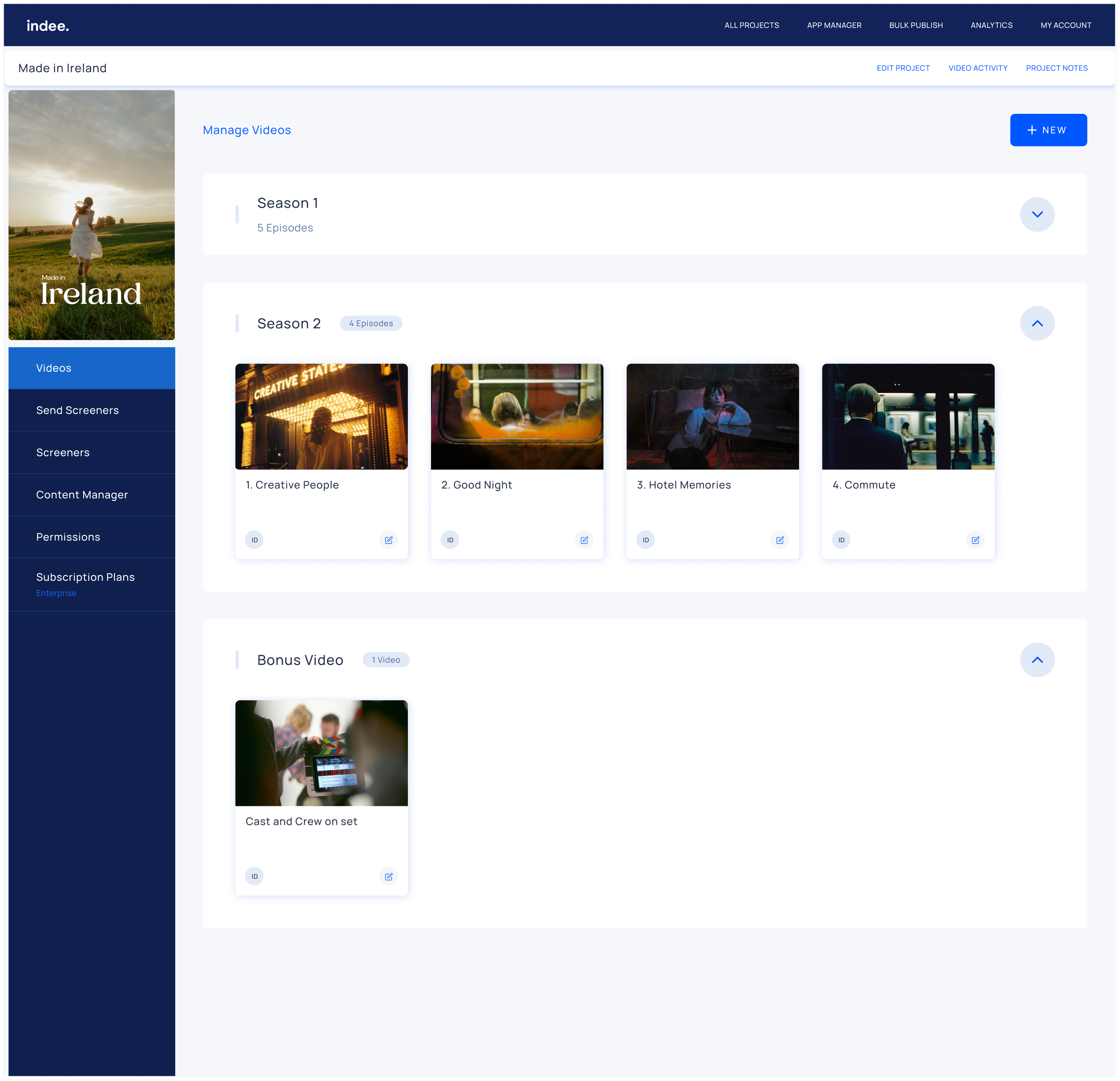
You can now upload videos to episodic titles and mark them as Bonus Videos to distinguish them from episodes. Previously available only for awards submissions, this feature is now also available for episodic title screeners.
If you previously uploaded videos to episodic titles without entering a season or episode number, they will now appear in the Bonus Videos section.
This is because our platform now requires season and episode values for standard episodes. If any of these videos are episodes and not supplementary content, you can revert them to episodes by editing the video and entering a season and episode number.
What are Bonus Videos?
Bonus videos are supplementary videos like trailers, interviews, BTS footage, and so on, that can be viewed along with your title on the Indee Screeners Watch app for web browsers and smart TVs.
Getting Started
How to Upload a Bonus Video
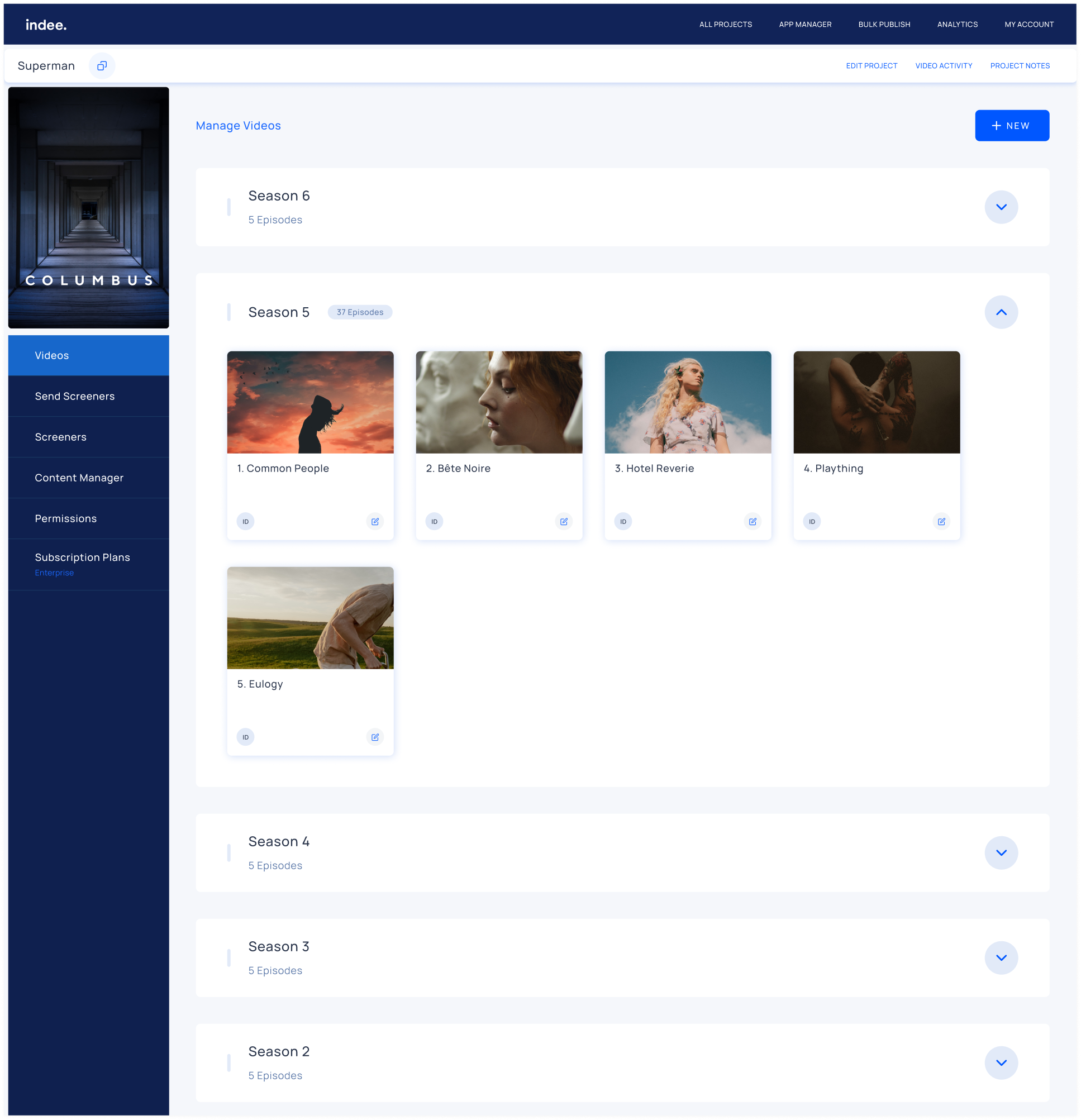
Click +New on the videos page of a project
Select Bonus Video
Enter the necessary details and upload your files
How to Change an Existing Episodic Video to a Bonus Video
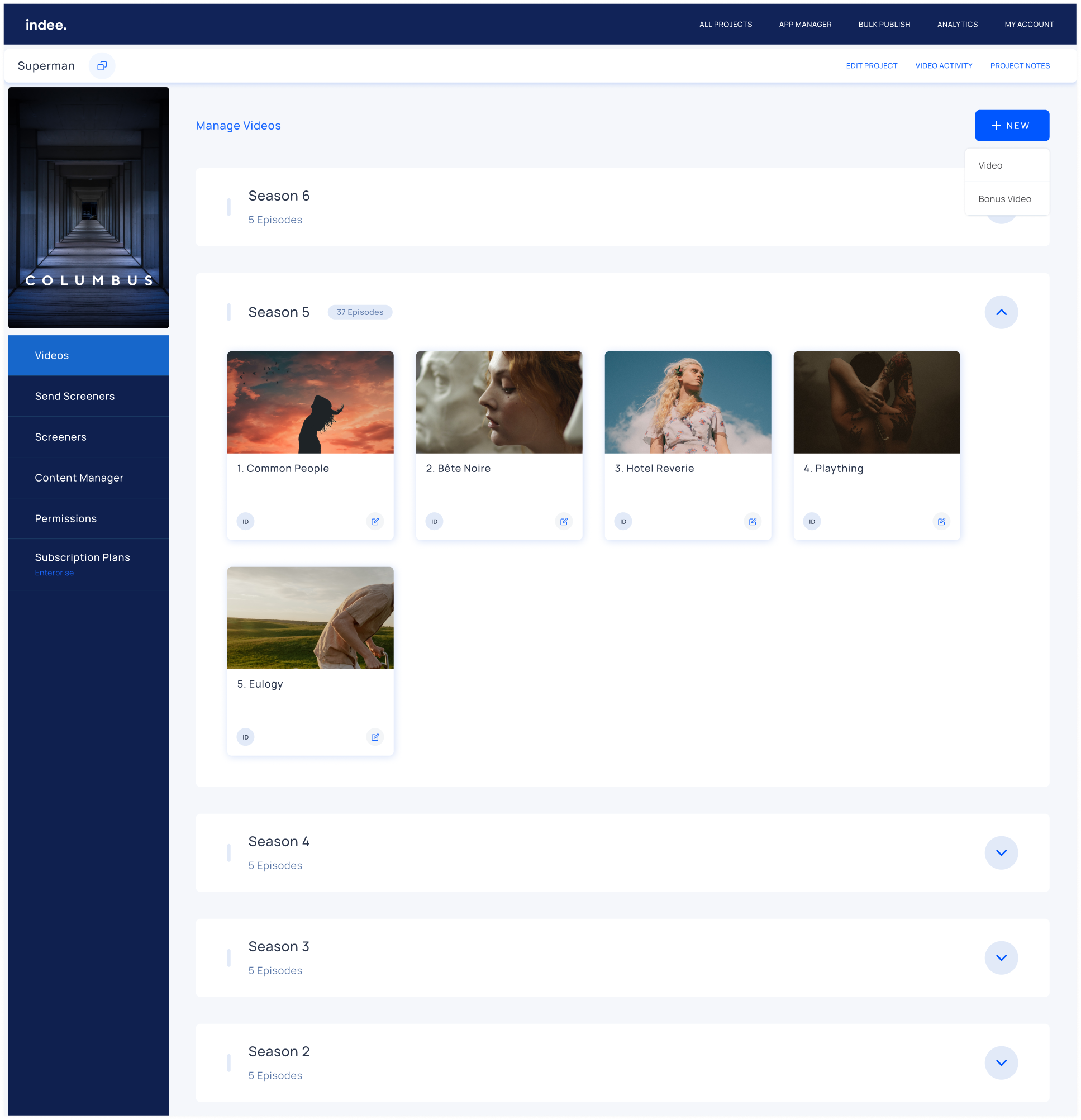
Choose a video in the seasons section and click the chevron on the right
Click the edit video button
Change the Season to 0
Click Save
Note: If the season number of a video in an episodic project is 0, it will automatically become a bonus video.
How to Change an Existing Bonus Video to an Episodic Video
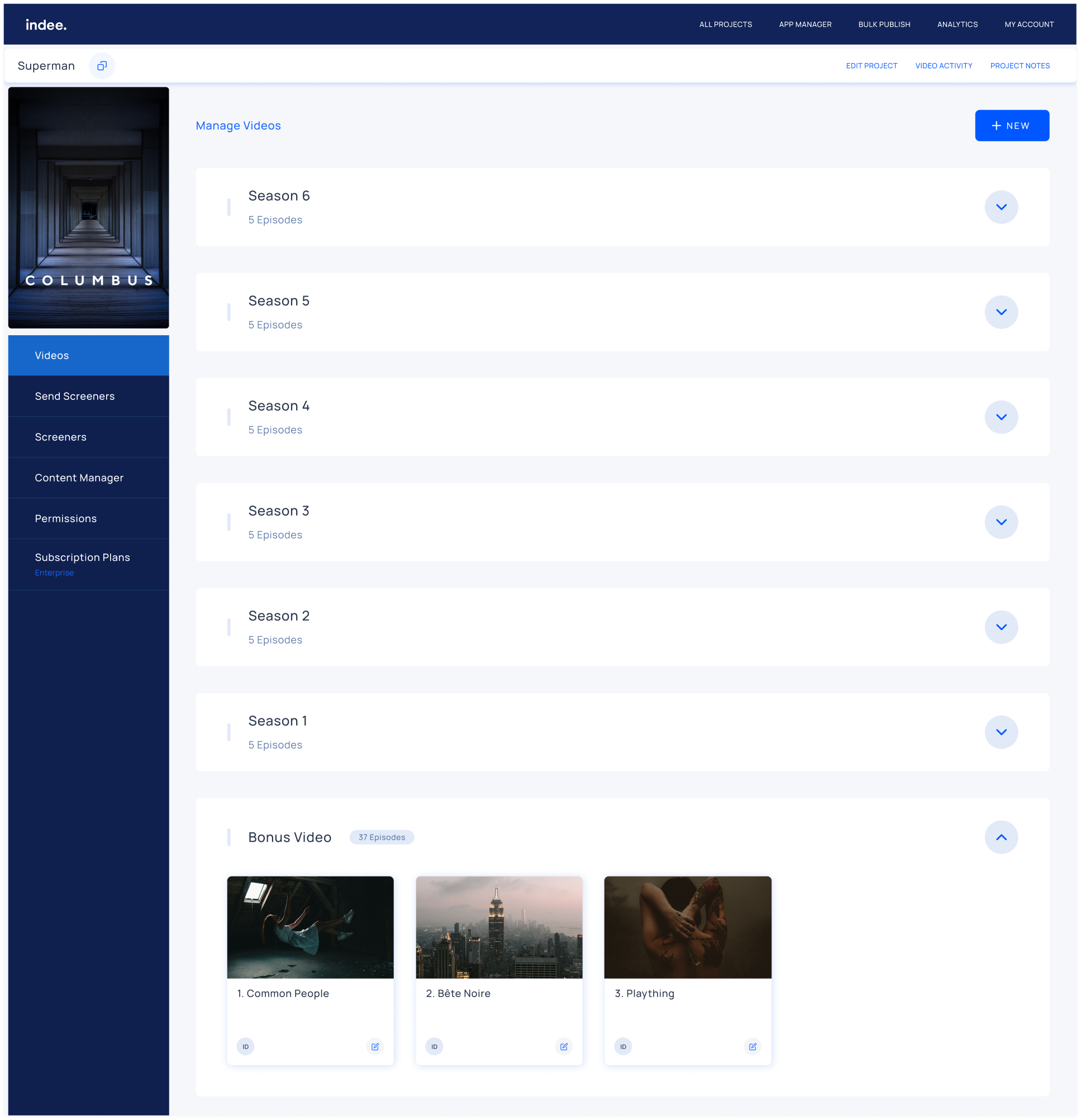
Scroll down to the Bonus Videos section and click the chevron on the right
Click the edit video button
Change the Season number from 0 to any number above 0
Click Save
Note: All bonus videos have default season numbers of 0. Changing the Season number to a value greater than 0 will classify the video as an episode.
How to Watch Bonus Videos
How to Watch Bonus Videos on Web Browsers
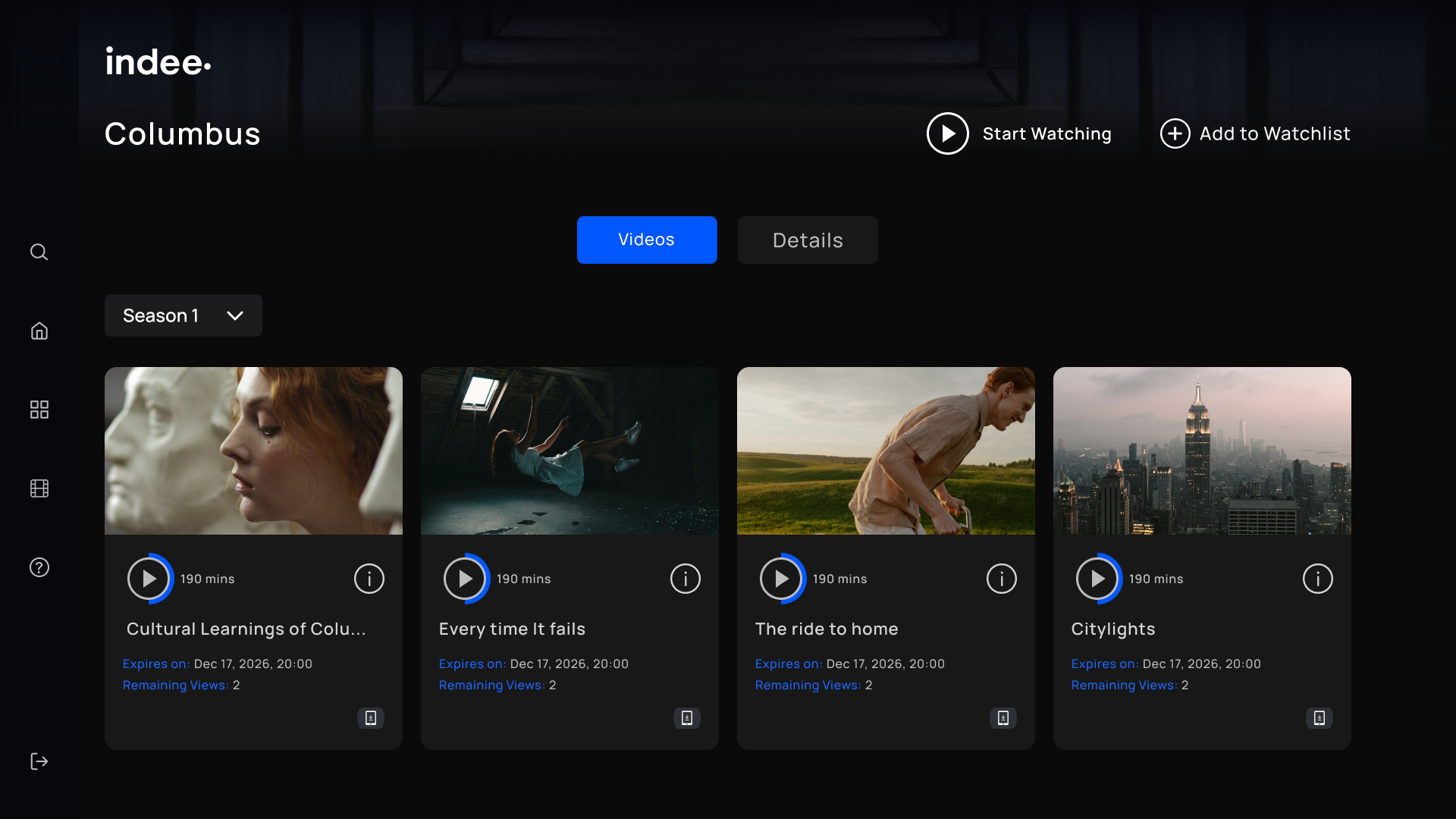
Access the Indee Screeners Watch app on your web browser
Click Bonus Content in the dropdown menu
Bonus videos will appear in the Videos tab
How to Watch Bonus Videos on Smart TVs
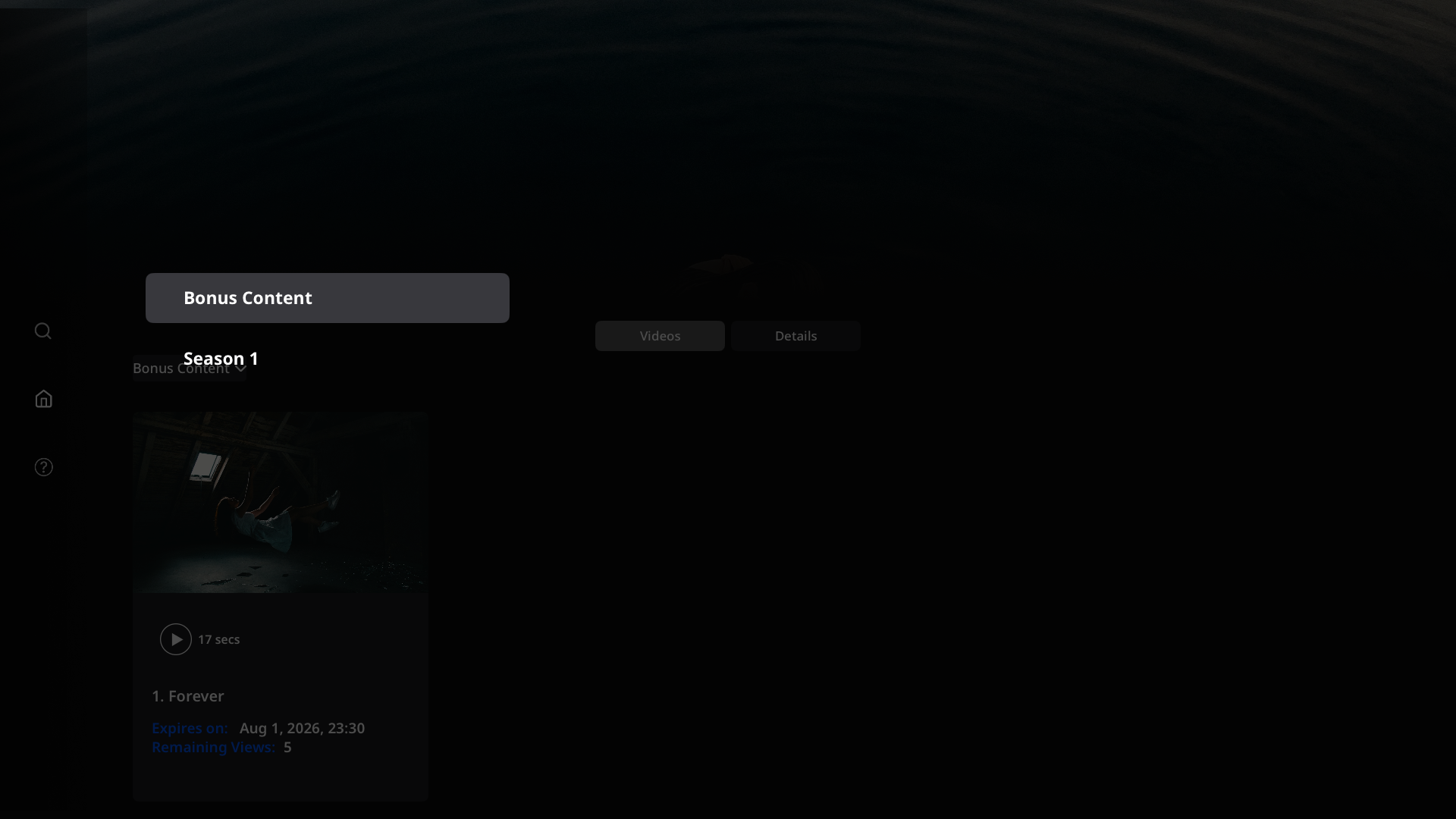
Access the Indee Screeners Watch app on your smart TV
The Bonus Content will be displayed
Note: If you wish to return to the Bonus Content section, you can use the dropdown menu.