Send Screeners on Indee
We have redesigned how users send screeners on our Admin platform by optimizing the entire video publishing process. This new workflow offers a cleaner interface and improved user experience while preserving existing functionality.
Who Has Access?
Root Account
Global Admins
Authorized Admins
Application Owner
Application Publishers
Project Admins
Project Publishers
Video Admins
Video Publishers
Note: Your access to publishing screeners will depend on your role.
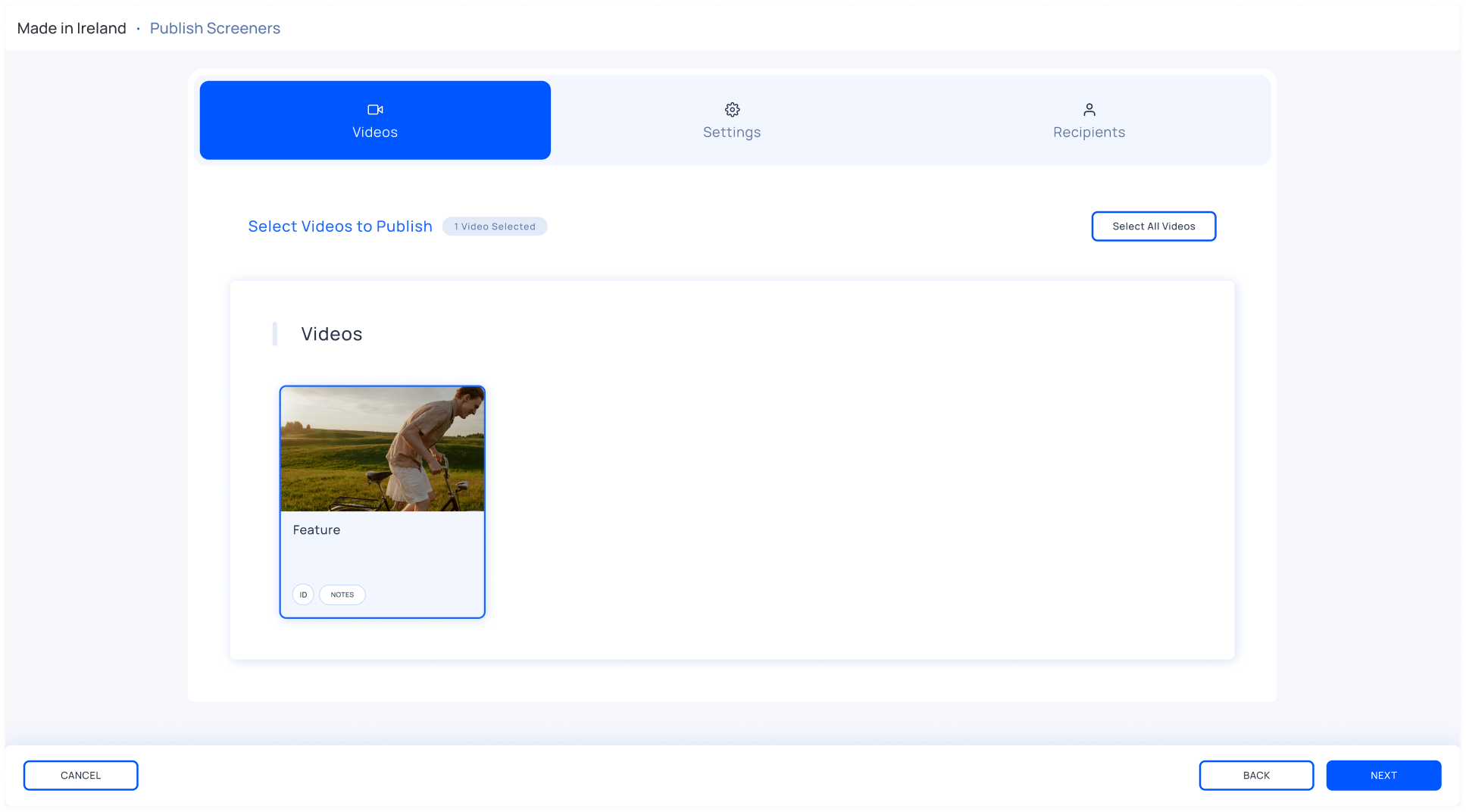
For non-episodic projects, click the thumbnails of the videos you want to publish, then click Next. You can also click Select All Videos if you want to publish all the videos in a project.
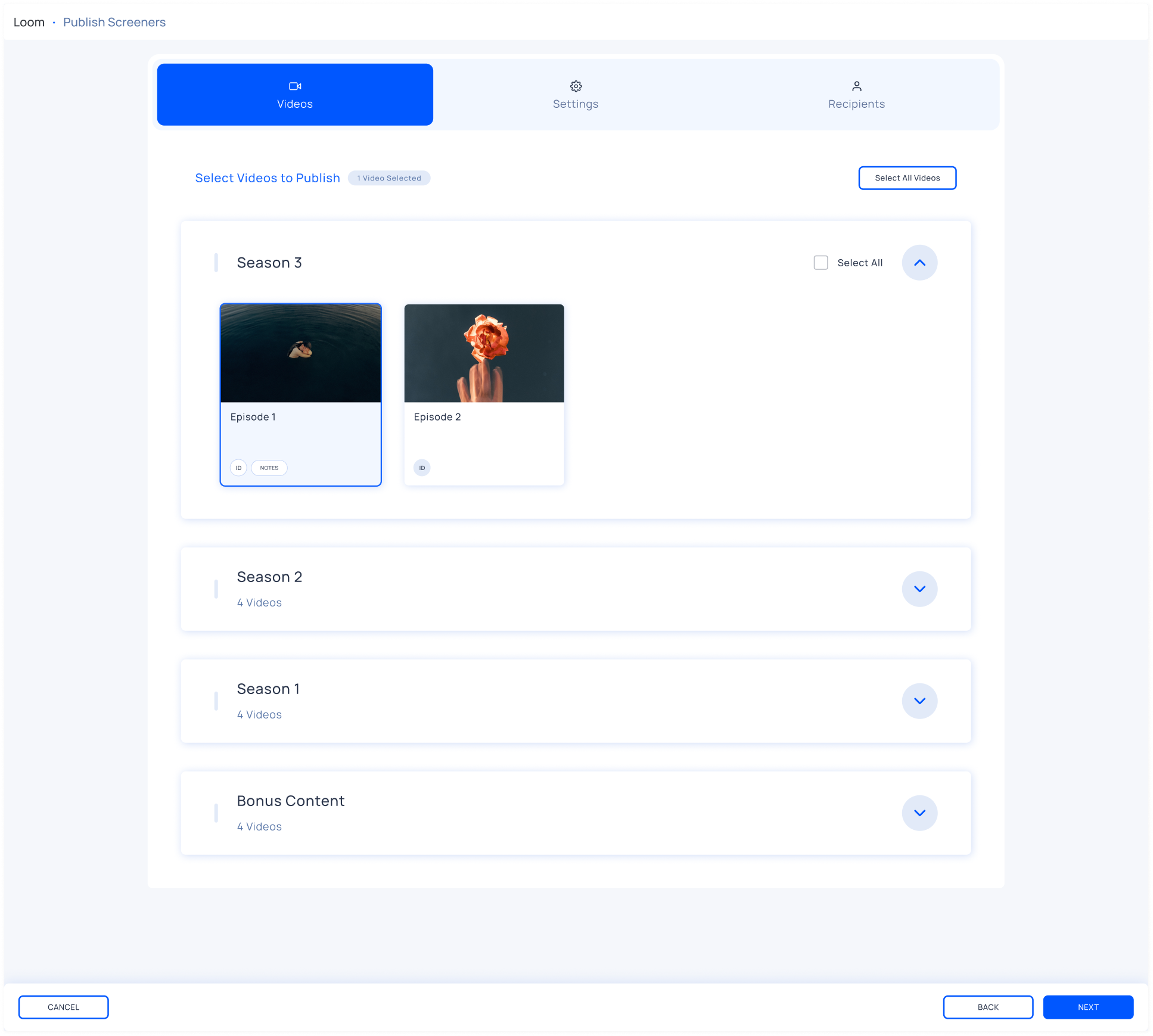
For episodic projects, click the thumbnails of the videos you want to publish, then click Next. To publish every video in a project, click Select All Videos. To publish every video in a specific season, click the Select All checkbox within that season.
Customize Settings
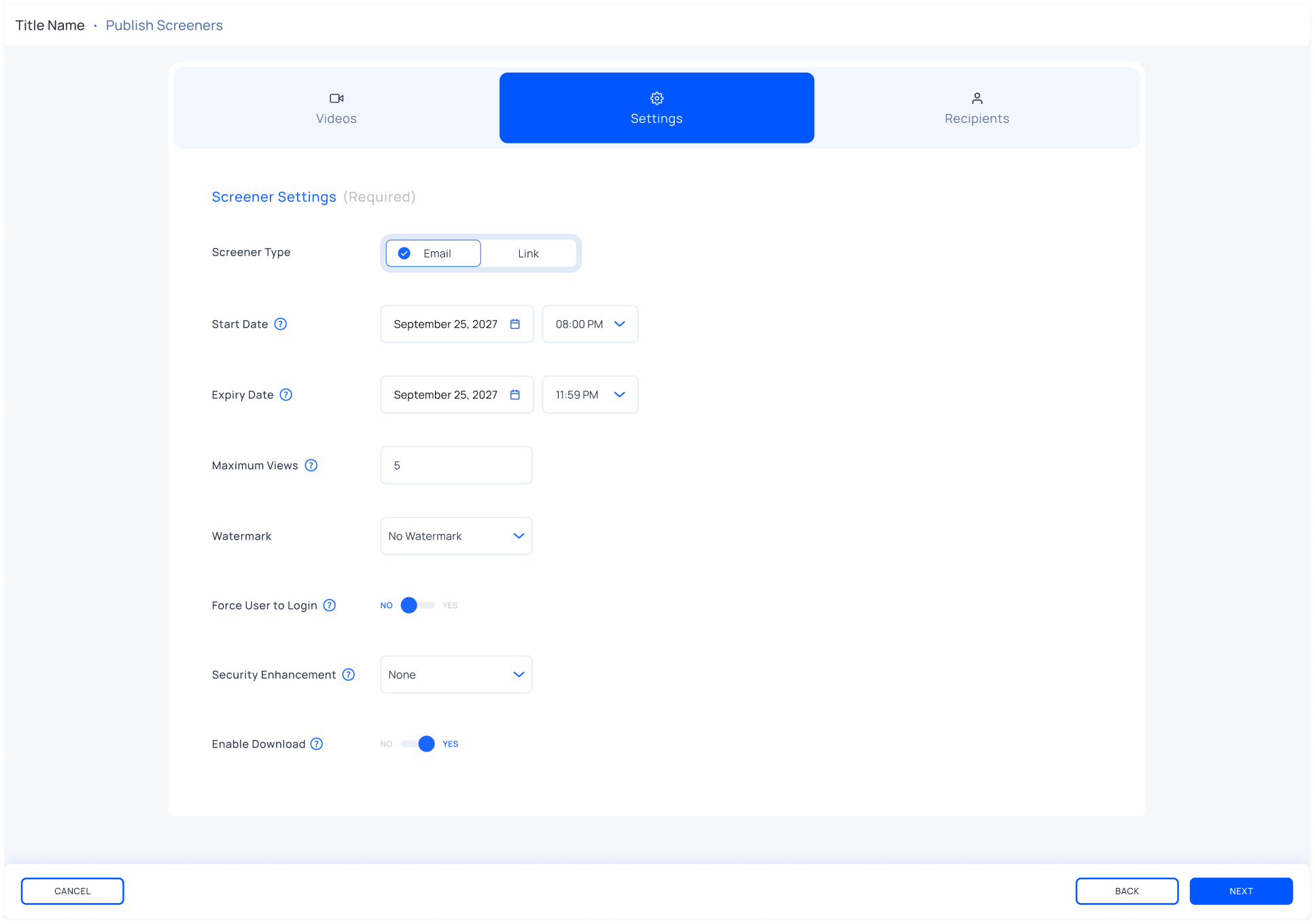
Select Email (if you want to share your screeners via email) or Link (if you want to do the same via a web link)
Choose how long you want your screeners active for by setting the start date and time, and expiry date and time
Choose how many views you want to set for each viewer by entering a number above 0 and less than 1000 (you can also go with the default, which is 20 views)
Select a watermark from the Watermark dropdown (the level of security ranges from No Watermark to Persistent + Burned watermark)
Toggle the Force User to Login button if you want your viewer to sign in to watch the screener
Select a security enhancement from the Security Enhancement dropdown (you can choose None, require the viewer to enter a password, or link their phone number to a screener)
Toggle the Enable Download button if you want to allow the viewer to download screeners (this feature is only available for certain Watch apps for iPad)
Choosing Recipients
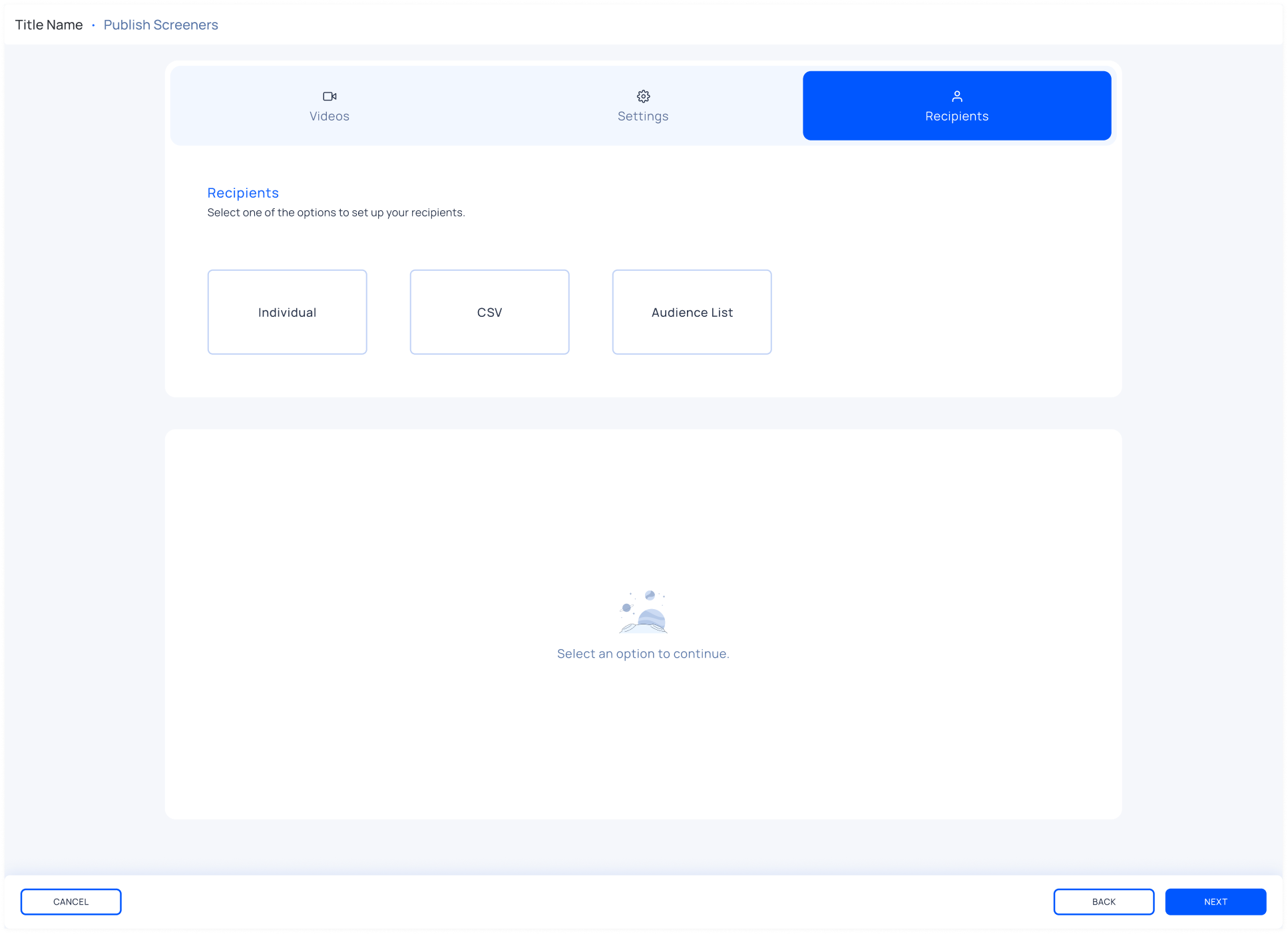
Click Individual, CSV, or Audience List. (The Audience List option is not available for Link type screeners)
Note: Campaign reminder emails are available for CSV and Audience List options. These emails notify viewers 25 hours before their assigned screeners expire.
Individual
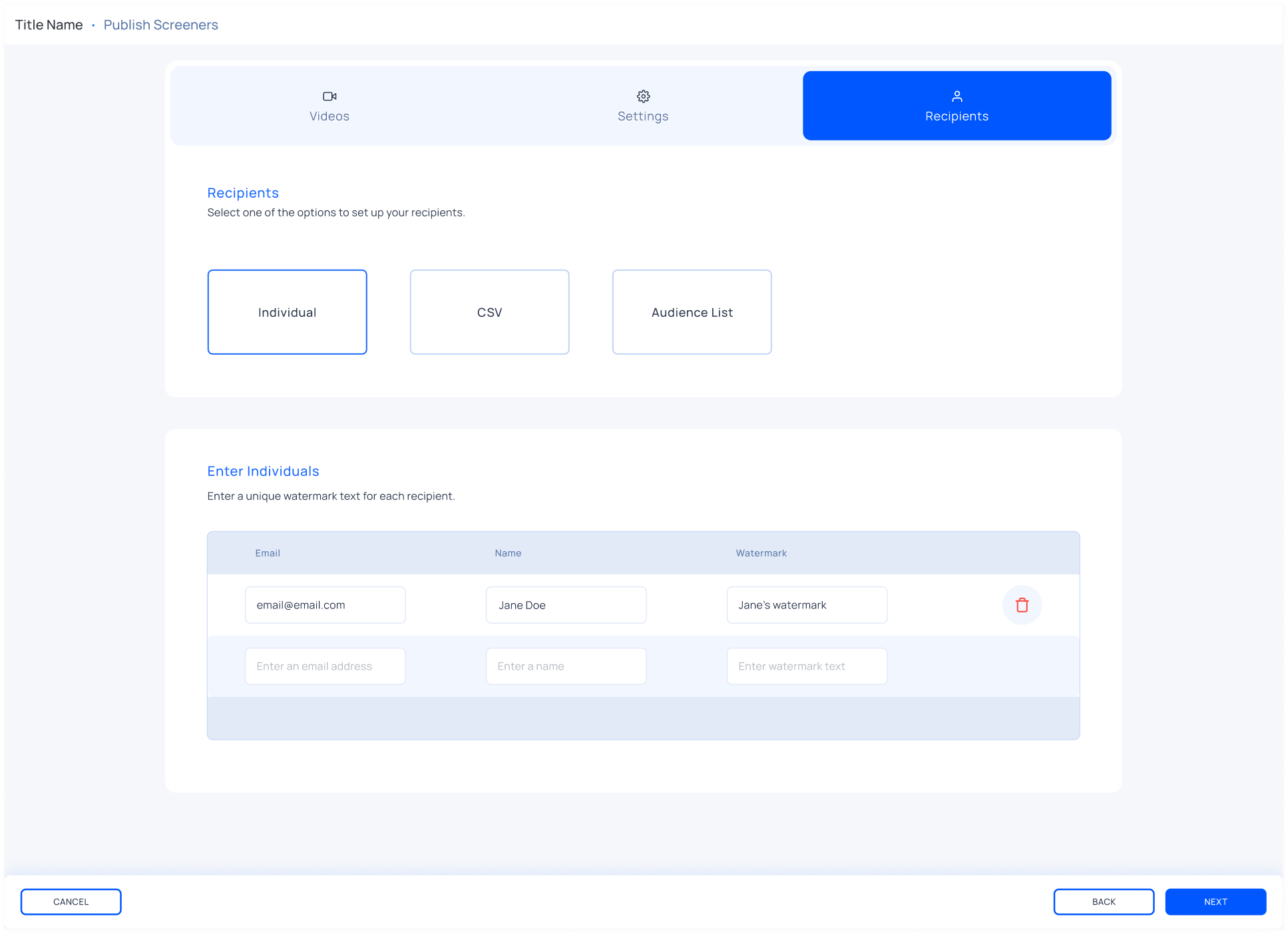
Enter the recipient’s email address in the Email text field
Enter the recipient’s name in the Name text field
Enter a unique watermark text for each recipient in the Watermark text field
Note: The maximum number of recipients for the Individual option is 25. If you have more than 25 recipients, we recommend you use the CSV or Audience List options.
CSV
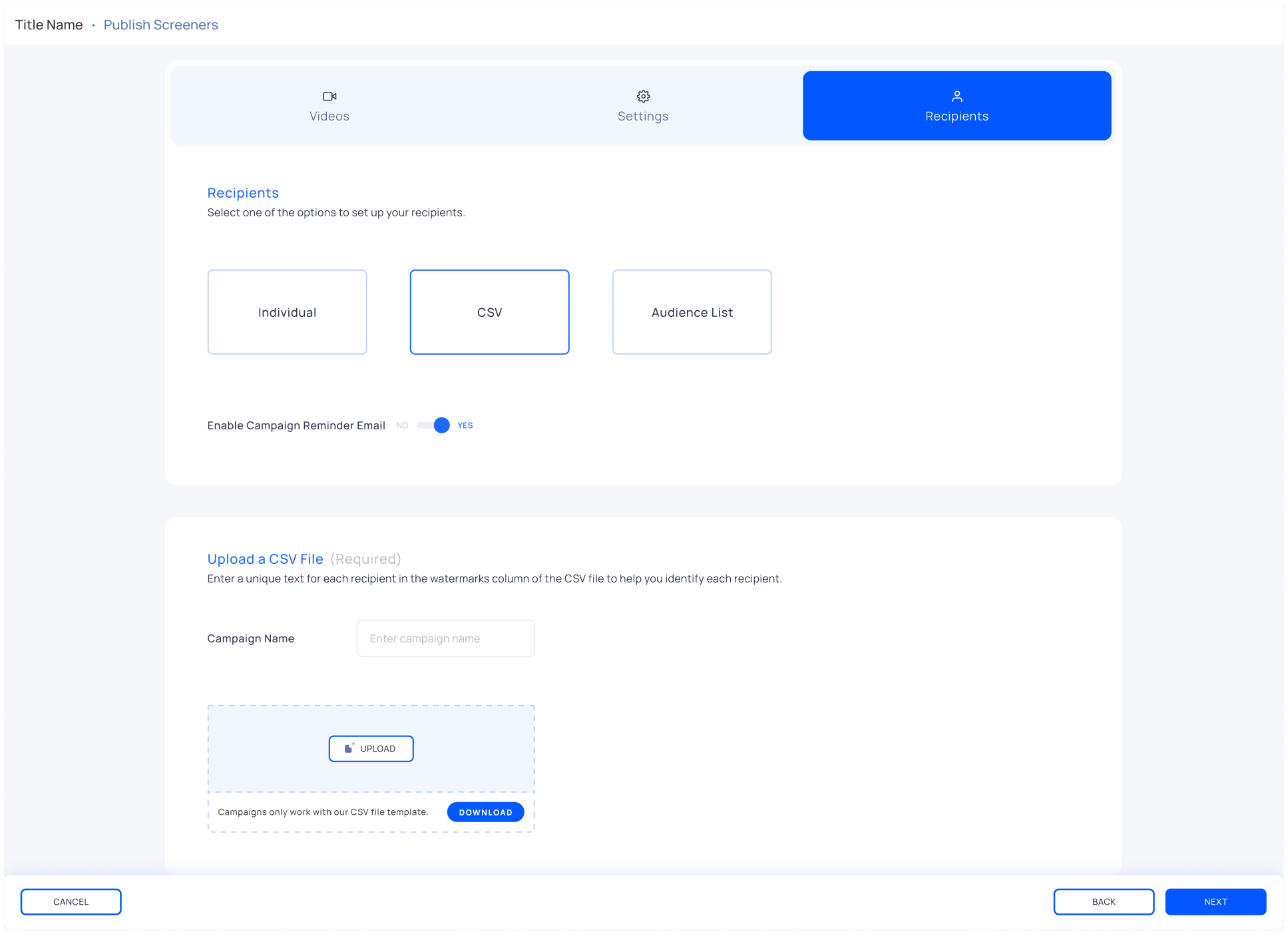
Enter the name of your campaign in the Campaign Name text field
Click Download to download the CSV file template
Enter your recipients’ details in our CSV file template and then click Upload
Click Next
Note: We only accept the CSV file template provided in the UI. Please download the CSV file template, enter the recipient details, and upload the same CSV file template.
Audience List
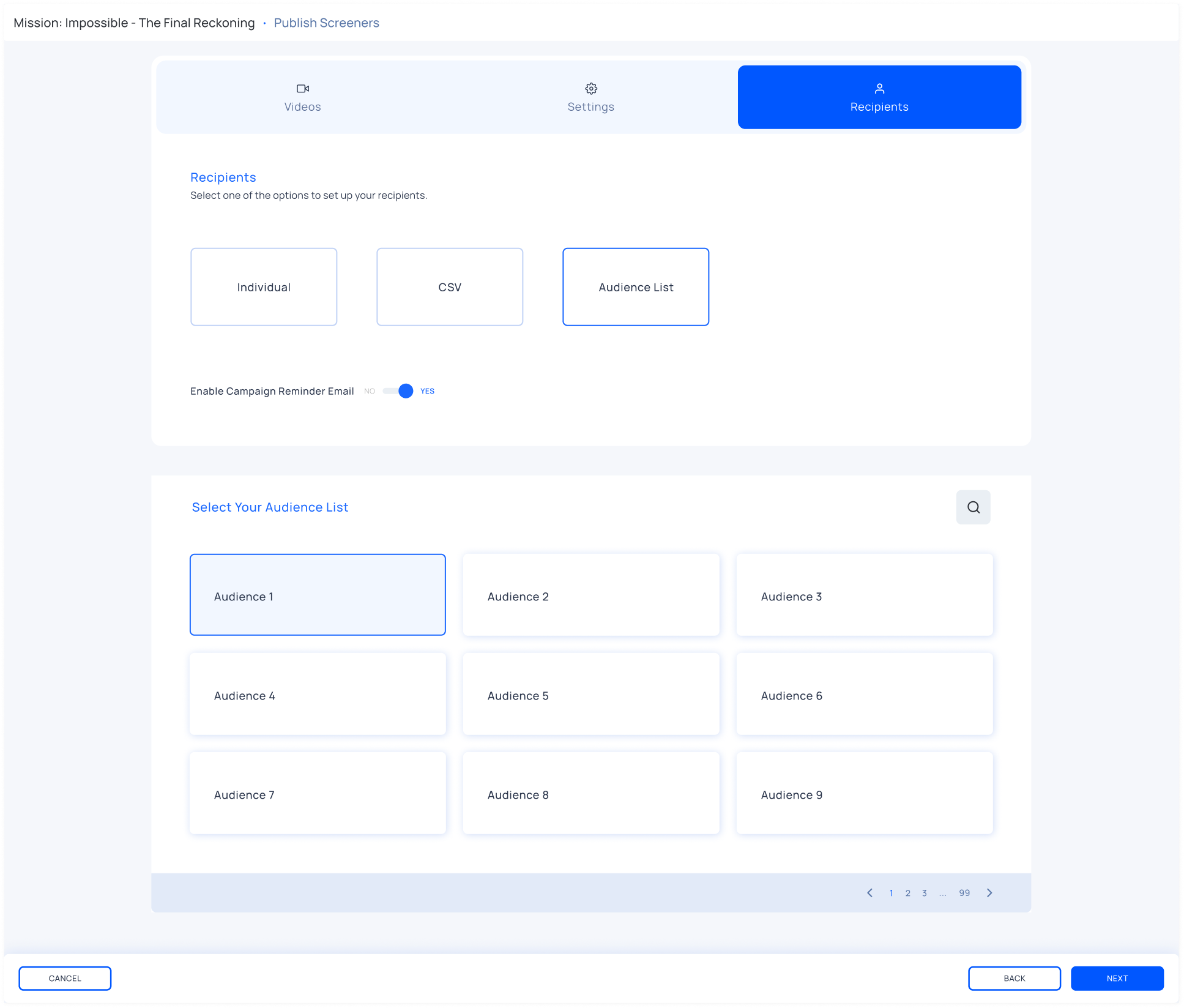
Click one of the available audience lists (if you cannot find the audience list you are looking for, you can click the Search button and enter the name of the audience list)
Note: Contact support@indee.tv to create audience lists.
What Happens After You Successfully Publish a Video?
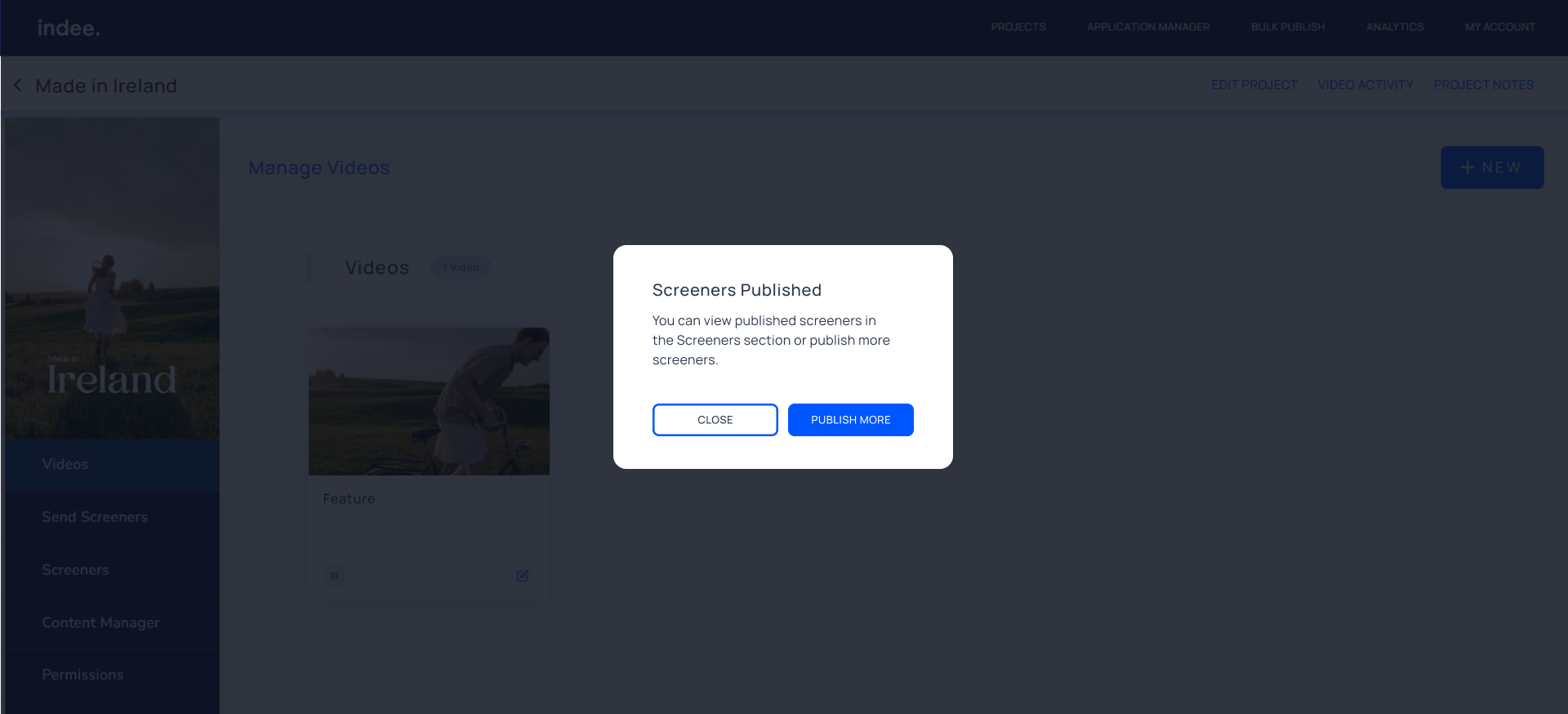
Successfully publishing videos on a non-episodic project
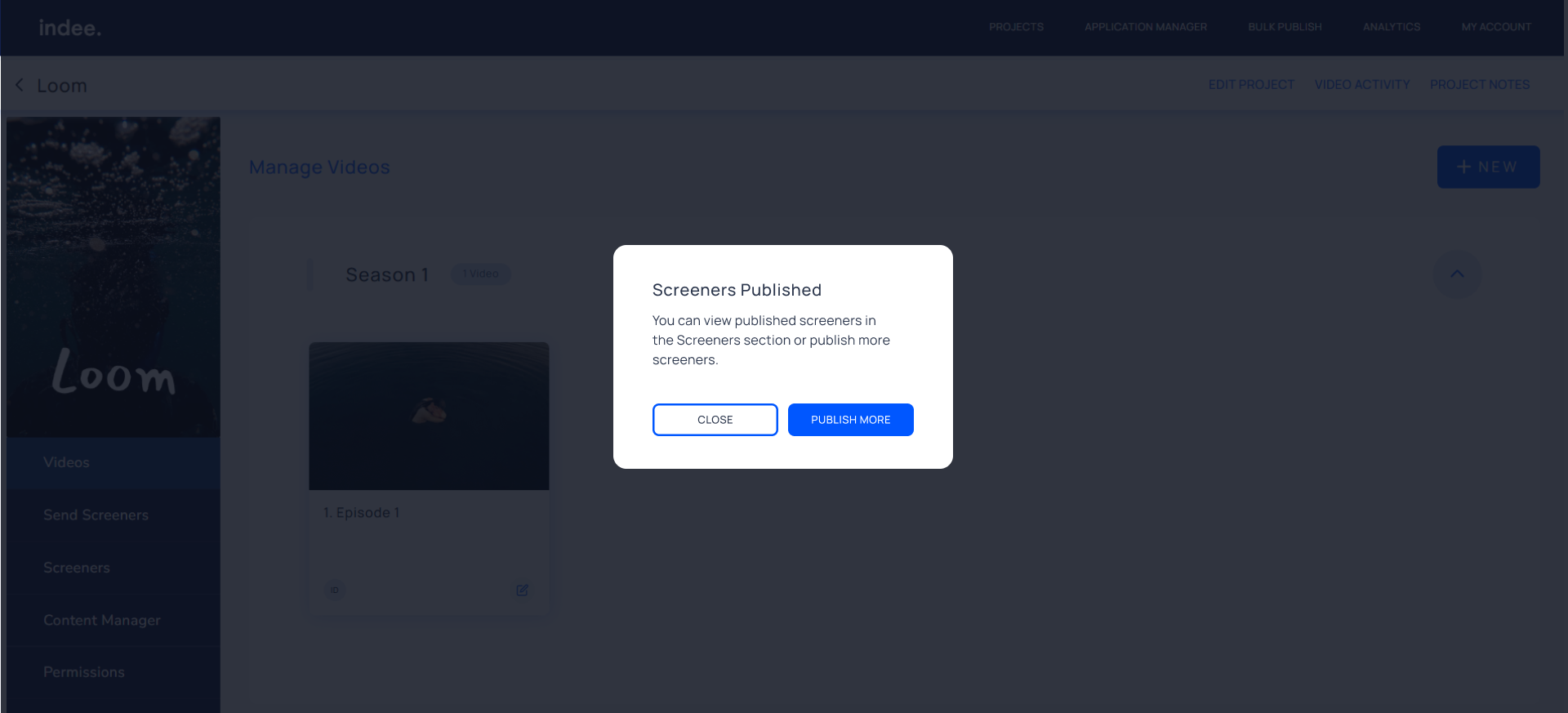
Successfully publishing videos on a episodic project
After publishing videos, you can publish more or return to the videos page of your project. You can click Screeners to understand how your audience is engaging with your screener.
Need More Help?
If you want a walkthrough of any of these features, you can reach out to support@indee.tv.
Click here to understand how project and video management works on Indee.