An Overview of Permissions on Indee
You can now assign, remove, or modify access for users and groups within your enterprise account in one convenient place, with our Permissions dashboard.
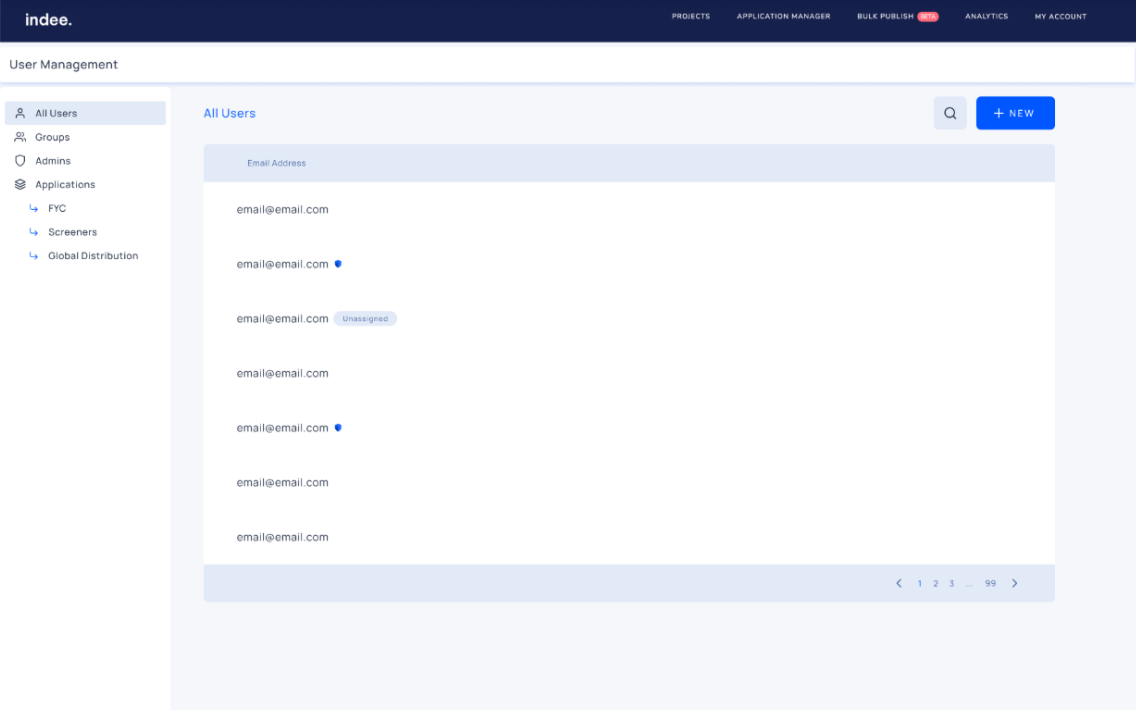
Levels of access on Indee:
Account
Project
Video
Group
Account-Level Access Roles
These roles function across applications, projects, videos, and groups. For a more detailed look at how to use account-level permissions, click here.
Root Account:
It is the original account for an enterprise and has the highest level of access in the organization. We request the organization to share an email address to set up their enterprise account, and this is their Root Account.
Note: Only Root Accounts and Global Admins can delete projects and have complete access to all projects created.
Users
Search for and view all users
Add, manage, and deactivate all users
Authorize and revoke admin access
Groups
Search for and view all groups
View user profiles and assigned groups
Create, delete, and manage groups
Add and remove users from groups
Applications
Manage applications
Global Admin:
Only 5 users can be assigned as Global Admins in an enterprise. After a Root Account is created, 5 individuals from their organization are assigned as Global Admins by Indee.
Users
Search for and view all users
Add, manage, and deactivate all users
Authorize and revoke admin access
Groups
Search for and view all groups
View user profiles and assigned groups
Create, delete, and manage groups
Add and remove users from groups
Applications
Manage applications
Note: Only Root Accounts and Global Admins can delete projects and have complete access to all projects created.
Authorized Admin:
Users
Search for and view all users (including other admins)
Projects
Create projects
Groups
Search for and view all groups
Create groups
Add, manage, and remove users from groups (in case of project groups, only if the assignee has the prerequisite permissions)
Applications Roles
These account-level roles function within our application(s) to which they have been given access, i.e., Publicity, Awards, and Global Distribution. For a more detailed look at how to use application permissions, click here.
Application Owner:
Search for and view users
Customize content using 'Application Manager'
Assign Application Publishers
Publish screeners
Application Publisher
View all users and groups
Publish screeners
Prerequisites
We have strengthened content security and accountability within enterprise accounts by establishing prerequisite permissions for project and video-level roles.
General Rules for Prerequisites:
Admin roles at the project and video levels require higher-level admin permissions.
To send screeners from an application (FYC, Screeners, or Global Distribution), users must be assigned as an Application Owner or Application Publisher for that application.
Video-level roles can only be assigned to users with the corresponding project-level permissions.
Note: These general rules may not apply in certain cases.
Project-Level Access Roles
These roles can only function within the project(s) to which they have been given access. For a more detailed look at how to use project-level permissions, click here.
Project Admin:
Pre-requisite: To be a Project Admin, a user needs to be an Authorized Admin.
Search for and view all users and roles
Add, manage, and remove users from projects
Add other Project Admins (pre-requisite: the user needs to be an authorized admin)
Add, edit, and delete videos
View video activity
Send screeners (pre-requisite: the Project Admin needs to be an Application Owner or Application Publisher for the application they intend to use)
Update and disable screener rooms (pre-requisite: the Project Admin needs to be an Application Owner or Application Publisher for the application they intend to use)
View the Content Manager section (pre-requisite: the Project Admin needs to be an Application Owner for the application they intend to use)
Project Publisher:
Pre-requisites: To be a Project Publisher, they need to be an Application Owner or Application Publisher.
View videos
Send screeners
View the analytics of their screeners
Request screener reports via email
View the Content Manager section (pre-requisite: the Project Publisher needs to be an Application Owner for the application they intend to use)
Project Uploader:
Add, edit, and delete videos
Project Analyst:
View account and screener rooms analytics
View video analytics (pre-requisite: there are no video overrides)
View videos
Video-Level Access Roles
These roles can only function within the video(s) to which they have been given access. For a more detailed look at how to use video-level permissions, click here.
Video Admin:
Pre-requisites: To be a Video Admin, a user has to be a Project Admin.
Search for and view all users and roles
Add, manage, and remove users from videos
Add, edit, and delete videos
View video activity
Send screeners (pre-requisite: the user needs to be an Application Publisher for the application they intend to use)
Update and disable screener rooms
Note: Only groups that have been added to a project can be added to a video within that project, and users or groups retain their project-level roles.
Video Publisher:
Pre-requisites: To be a Video Publisher, a user has to be a Project Publisher.
View videos they were added to
Send screeners
View the analytics of their screeners
Request screener reports via email
Note: Only groups that have been added to a project can be added to a video within that project.
Video Uploader:
Pre-requisites: To be a Video Uploader, a user has to be a Project Uploader.
Add, edit, and delete videos
Group Access
By creating a group and adding users to it, you can organize users who have the same access. For a more detailed look at how to use group-level permissions, click here.
Note: Users who do not have the same level of access as the group cannot be added to it.
Only Root Accounts, Global Admins, and Authorized Admins can:
Create groups
Delete groups
Add and remove users from groups
How to View, Add, and Remove Users From Your Account
How to View, Add, and Remove a User From an Application
How to View, Add, and Remove Users or Groups From a Project