How to View, Add, and Remove a User From an Application
Viewing Users in an Application
Click My Account, click Permissions to open the Permissions dashboard, and click one of the applications under the Applications section on your dashboard.
Note: Not all users can access a permissions dashboard, and each dashboard will vary based on your role.
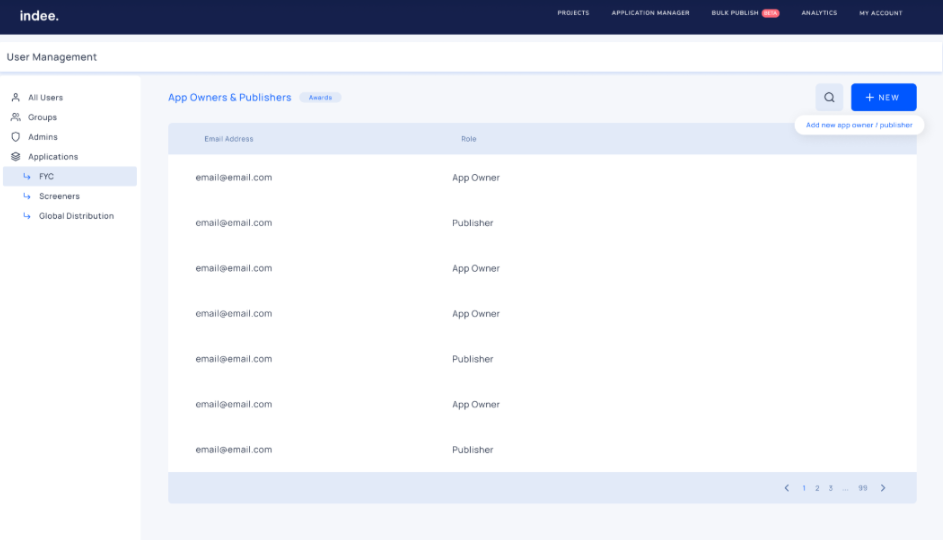
Adding a User to an Application
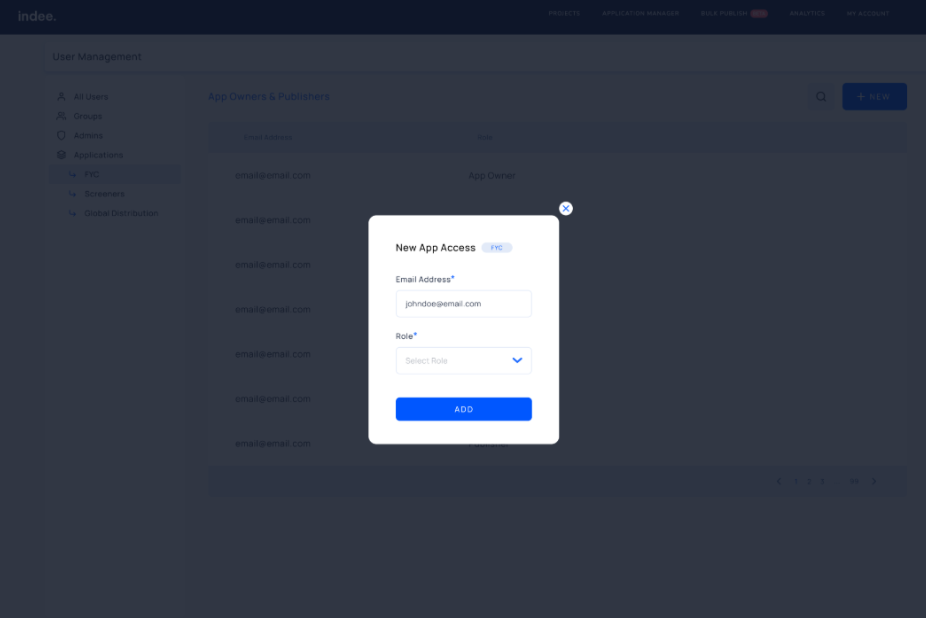
Select the application (FYC, Screeners, or Global Distribution) you want to add the user to
Click the + New button
Enter the user’s email address
Choose their role in the app
Click Add
Note: Only Global Admins and Application Owners can enable application access to users at the account level.
Removing a User From an Application
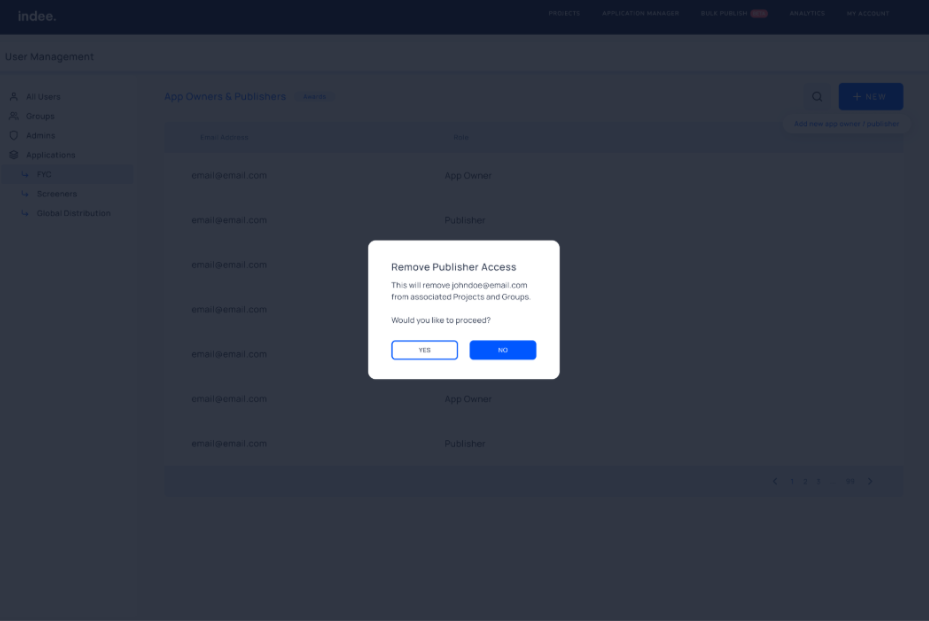
Select the application you want the user removed from
Hover over the user’s email address and click the “Remove Access” button
Click Yes
An Overview of Permissions on Indee
How to View, Add, and Remove Users From Your Account
How to View, Add, and Remove Users or Groups From a Project