How to View, Add, and Remove Users From Your Account
Viewing Users in Your Account
If you are a Global Admin, Authorized Admin, or Application Owner, sign in to the Indee Admin platform, click My Account, and then select Permissions to open the Permissions dashboard.
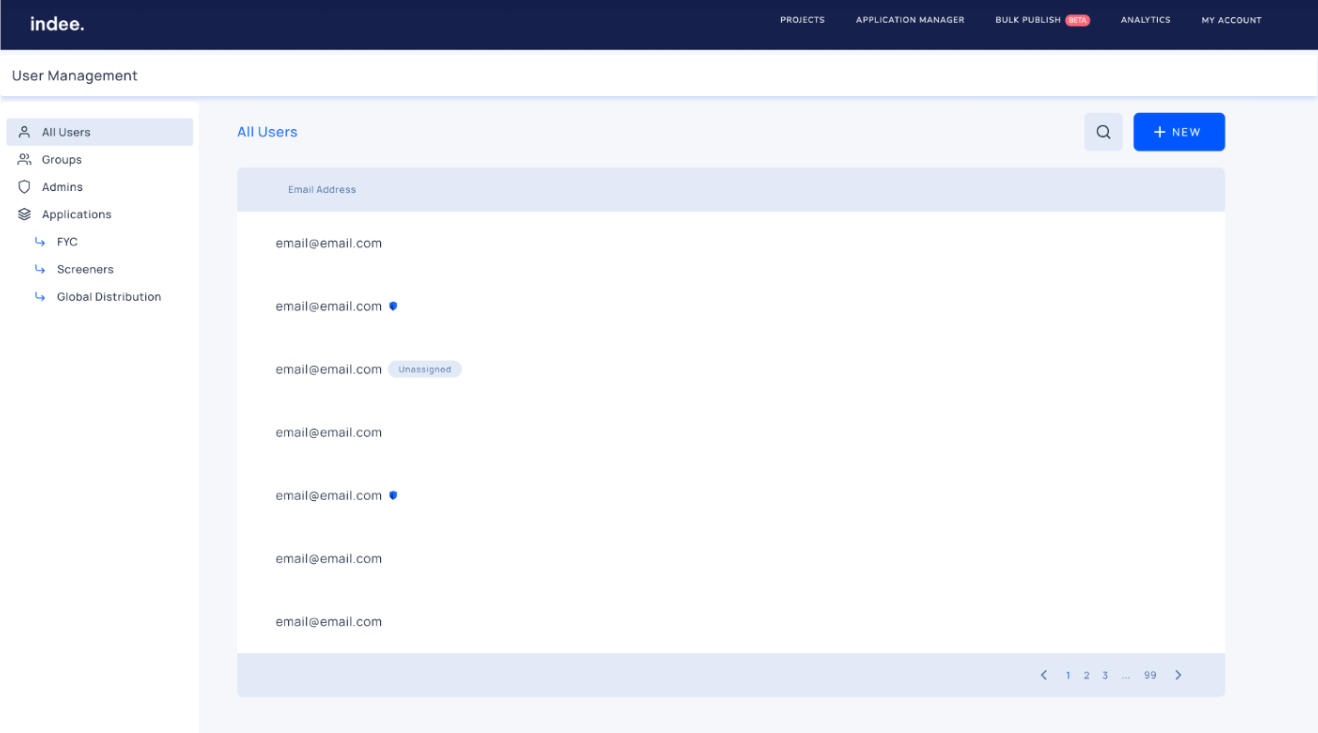
Note: Not all users can access the Permissions dashboard, and each dashboard will vary based on your role.
Adding a User to Your Account
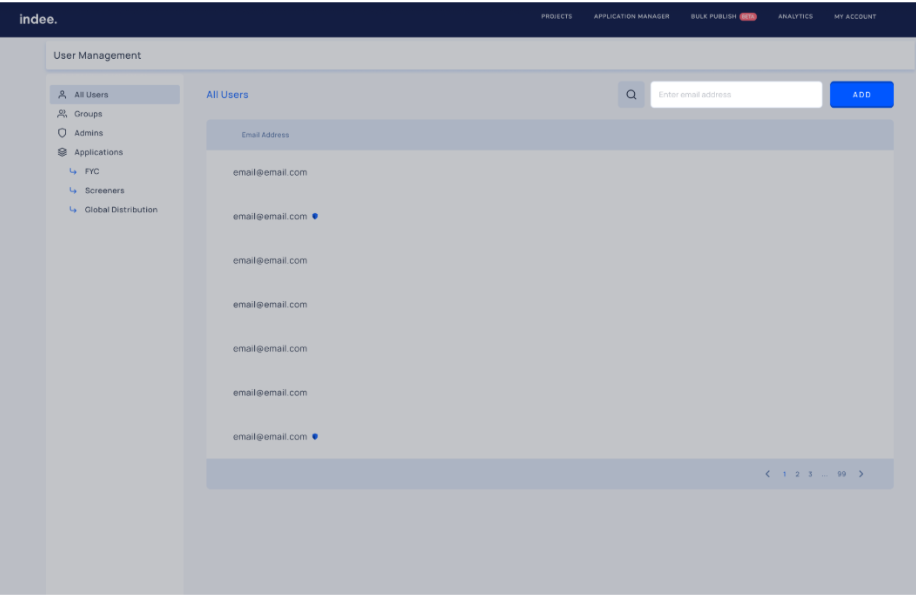
Click the + New button, enter the user’s email address, and then click Add. This user will be added to your Indee account, but they have not been assigned a role yet.
Assigning Authorized Admins
Users need to be added as Authorized Admins before being added to any project or group as a Project Admin. To assign the Authorized Admin role to newly added users, you can go to the Admin section on your dashboard:
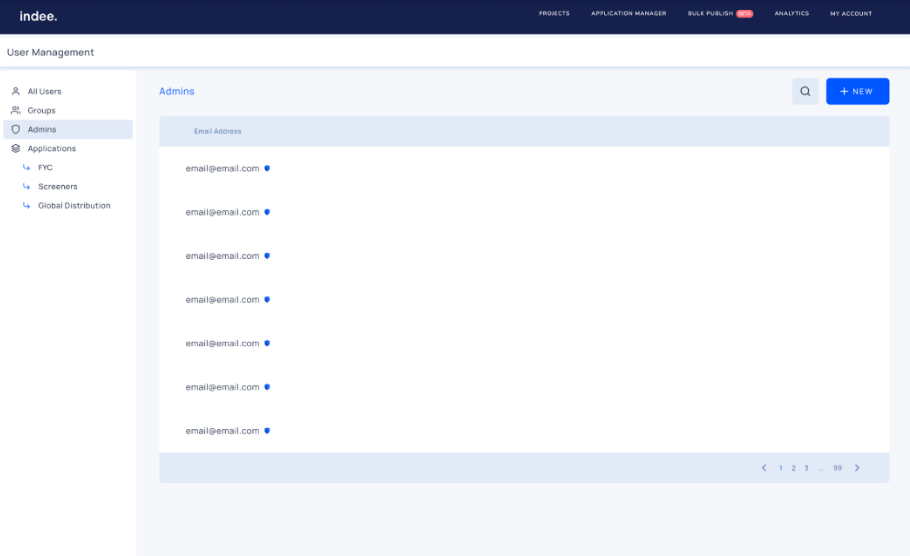
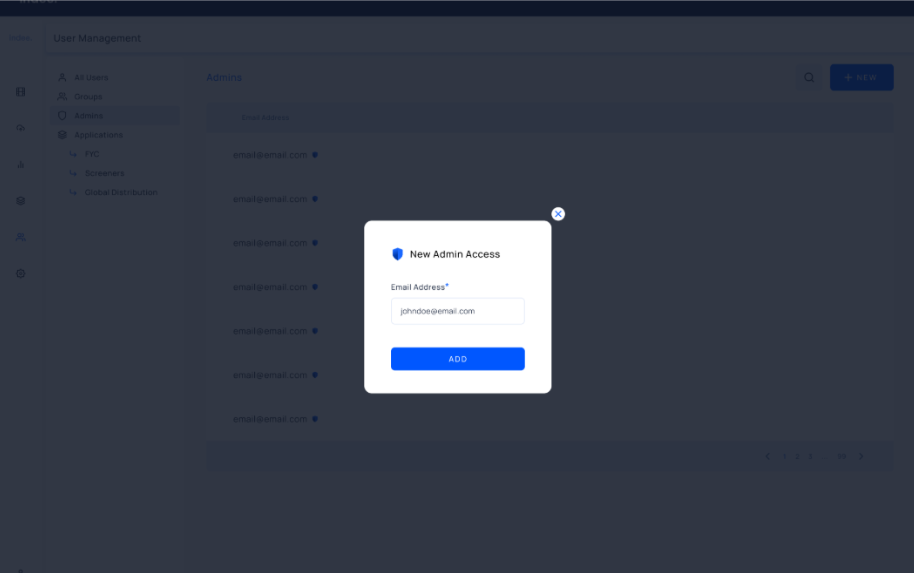
Click the + New button
Enter the user’s email address
Click Add
Note: Only Global Admins can assign Authorized Admin roles to users at the account level.
Deleting a User From Your Account
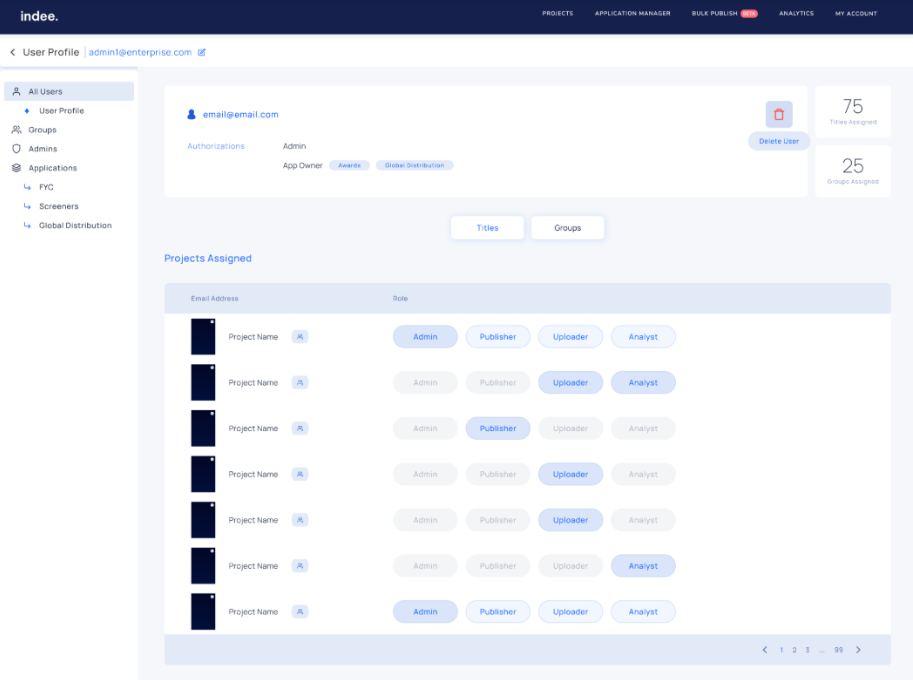
Go to the All Users section on the dashboard
Search for the user if you cannot find them in the list of users
Hover over the user you want to delete and then click the “User Profile” button
Click the “Delete User” button
Click Yes
Note: Removed users will lose access to all associated projects and/or groups.
An Overview of Permissions on Indee
How to View, Add, and Remove a User From an Application
How to View, Add, and Remove Users or Groups From a Project