How to View, Add, and Remove Users or Groups From a Project
Viewing Users and Groups in a Project
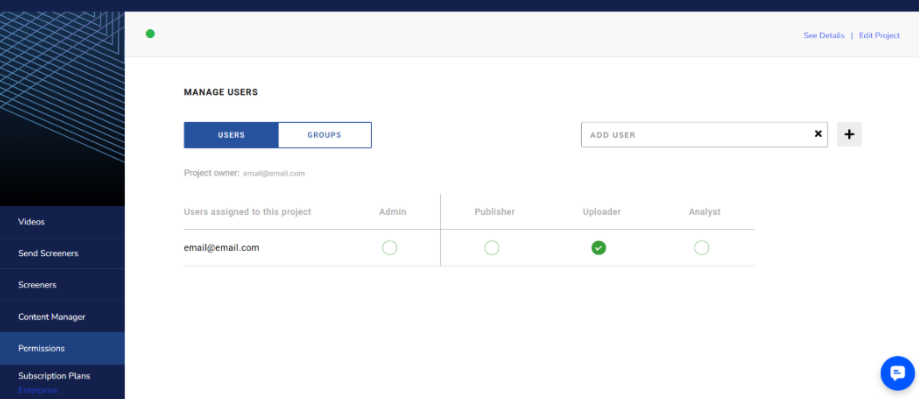
Click the project thumbnail of any of your projects, and then click Permissions. Click Users to view the entire list of members added to the project and their respective roles, and click Groups to do the same for groups.
Adding a User or Group to a Project
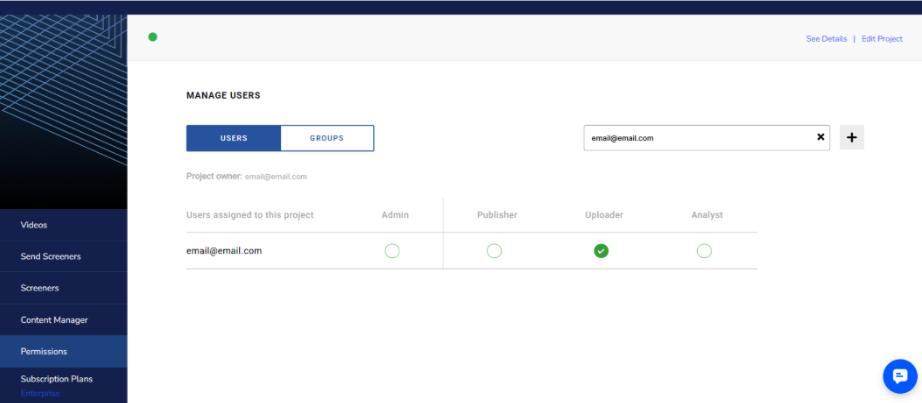
Click Permissions
To add a user, select Users, enter the user’s email address in the search bar, and click + (only users who have been added to the account will appear here)
To add a group, select Groups, enter the group’s name, and select them from the dropdown
Choose their role in the project
Refresh your webpage
Note: Users and groups need to be granted Authorized Admin access in order to be added as a Project Admin of a project.
Removing or Changing the Permissions of a User or Group in a Project
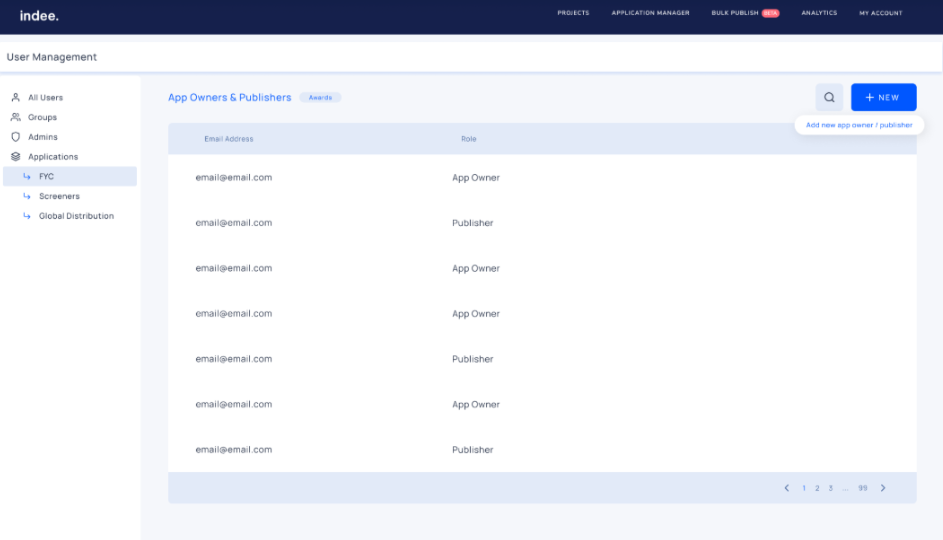
Click Permissions
Select Users or Groups
Add or remove permissions
Refresh your webpage
An Overview of Permissions on Indee
How to View, Add, and Remove Users From Your Account
How to View, Add, and Remove a User From an Application